

Ah, the age-old question: to GPU or not to GPU? So ask yourself, “Do I need a GPU?” If you’re anything like me, the GPU was your first consideration when planning a new PC build.
However, depending on how you use your PC, a graphics card can be a must-have or just a nice-to-have.
Let’s look at some industry jargon—without getting too techy—and try to help you decide if you really need one.
Key Takeaways:
This article provides an overview of the different graphic options for your PC.
- Learn the difference between integrated and dedicated graphics
- How to find the graphics type you’re currently using
- What to consider before choosing a graphics type
- When integrated graphics are sufficient
- When dedicated graphics are required
How you use your PC will determine which option is best.
How to Identify Your PC’s Graphics Type
First, if you already have a computer, let’s see what type of Graphics it supports.
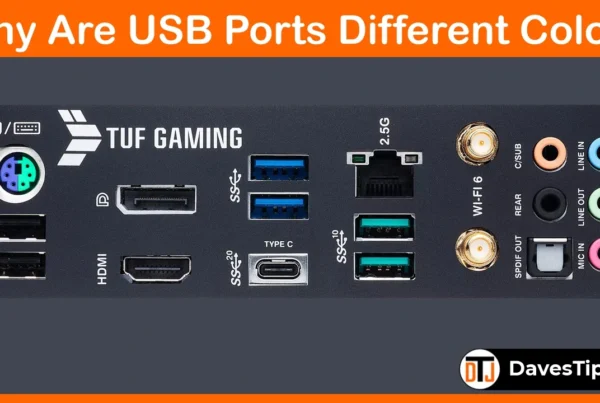
A quick look at the back of your computer will tell you whether you’re using an integrated graphics setup or a dedicated GPU. (We’ll cover this later).
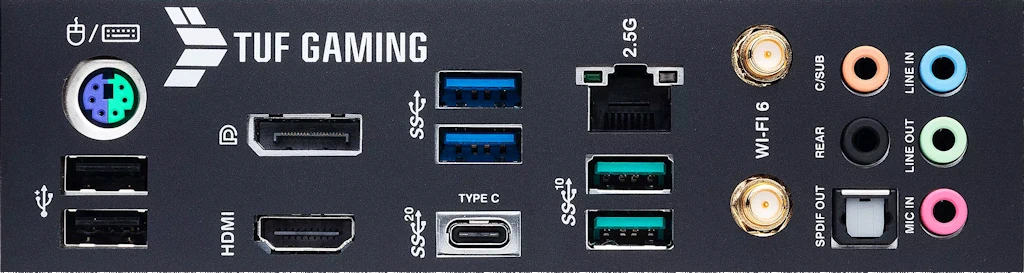 If your computer monitor is connected to any of the video inputs on the motherboard’s back panel, you’re using the motherboard’s “Integrated Graphics” connection.
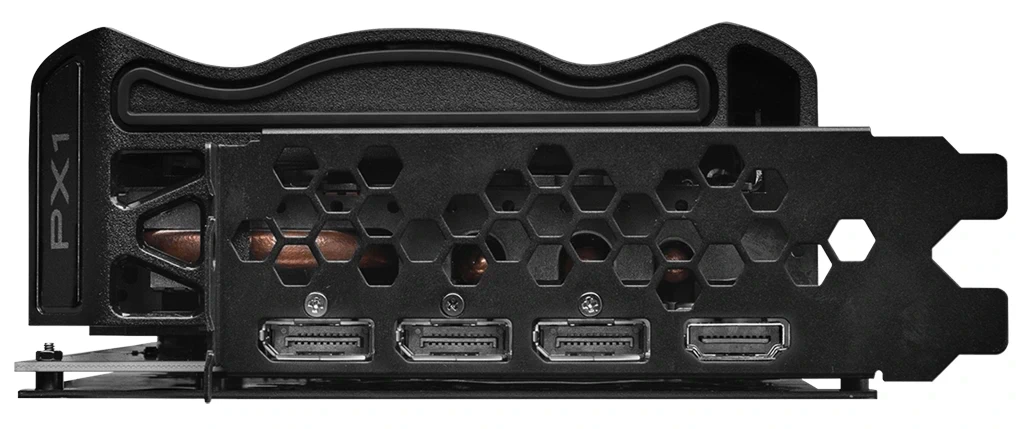 If your computer monitor is connected to a graphics card installed in one of the motherboard expansion slots, like the one above, you’re using a “Dedicated GPU” connection.
What about gaming laptops? Can they have dedicated graphics cards?
Yes, they’re specially designed to fit the smaller laptop footprint. Because of this, they may not be as powerful as those designed for desktop computers, but some come close!
Now, let’s see which graphics device you’re using. To find out, type “Device Manager” in the Windows Search box located just to the left of the Start Button and select it to open.
Select “Display adapters” to see what type you have installed.
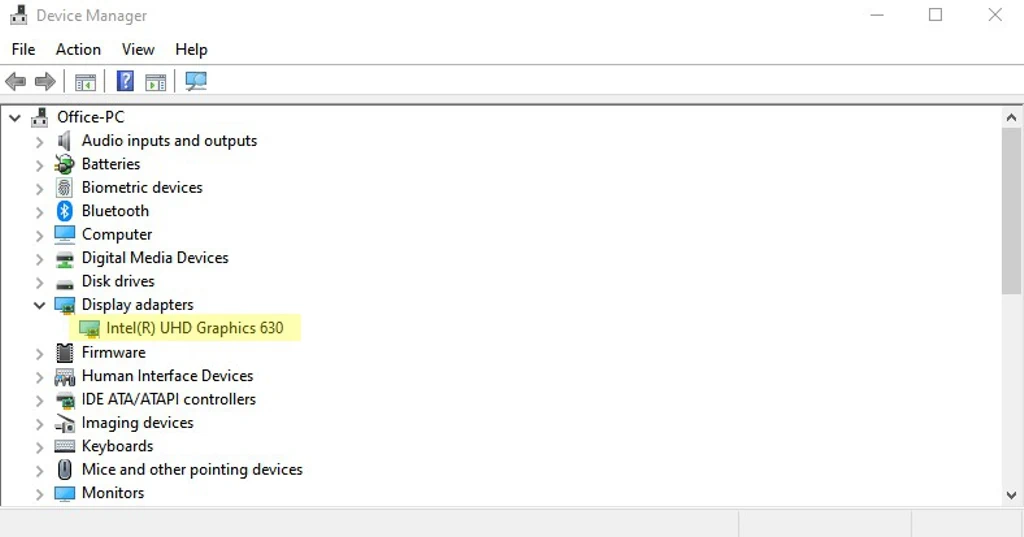 If you use an Intel CPU with integrated graphics, you’ll see an adaptor listed, such as “Intel(R) UHD Graphics xxx” or a similar name.
Otherwise, if you have an AMD APU (Accelerated Processing Unit), you might see an adapter listed as “AMD Radeon (TM)…” or something similar.
Lastly, if you see more than one display adapter listed, you also have a dedicated graphics card installed, which is identified by its model number.
Integrated vs. Dedicated GPUs: What’s the Difference?
 When it comes to graphics processing, the terms “integrated” and “dedicated” mean just that.
Integrated GPU graphics are built into your CPU, so they share resources with the rest of your PC.
On the other hand, dedicated GPUs are separate graphics cards you install in an expansion slot on the motherboard (typically a PCIe slot).
Whether integrated graphics are enough or you need the heavy lifting that a dedicated graphics card provides largely depends on how you plan to use your computer—each has its advantages!
So, what’s the difference between an integrated and dedicated GPU?
Let’s have a look.
What does integrated graphics mean?
Integrated graphics means that instead of having a separate (discrete) graphics card, all the GPU processing power is combined with the CPU (central processing unit).
While Intel still calls this the CPU, AMD will refer to its integrated graphics and CPU as an APU (accelerated processing unit).
Integrated graphics are best for everyday computing. If you’re a casual user who only uses a PC to check email, stream movies, or work on basic documents, this option will work well for you.
One advantage of integrated graphics is lower energy use, which we can all use nowadays. Plus, your PC will run cooler.
So, if you don’t need high-end graphics performance, integrated graphics offer a balance of functionality and affordability while still getting the job done.
What does dedicated graphics mean?
Discrete graphics or dedicated graphics, as many call it, are graphics cards installed in an expansion slot found in most modern desktop computers, usually a PCIe x16 slot.
Unlike integrated graphics, which share resources with the central processing unit (CPU), discrete or dedicated GPUs include a separate graphics processor and memory.
The processing power dedicated graphics provide is required for demanding uses like PC gaming. Dedicated GPUs feature specialized hardware and dedicated VRAM designed for graphics rendering, significantly improving visual quality and overall performance.
Also, a dedicated GPU is necessary for content creators who do graphic design, 3D rendering, and video editing.
Plus, to achieve the best performance, a dedicated GPU is the only way to go.
If you’re not sure which you need and a dedicated GPU is within your budget, there are many options, from entry-level to high-end.
Just be sure it includes at least 12GB of video memory or more if you like to play the most demanding games at high resolutions or run multiple graphics applications side by side.
Are Dedicated GPUs Faster?
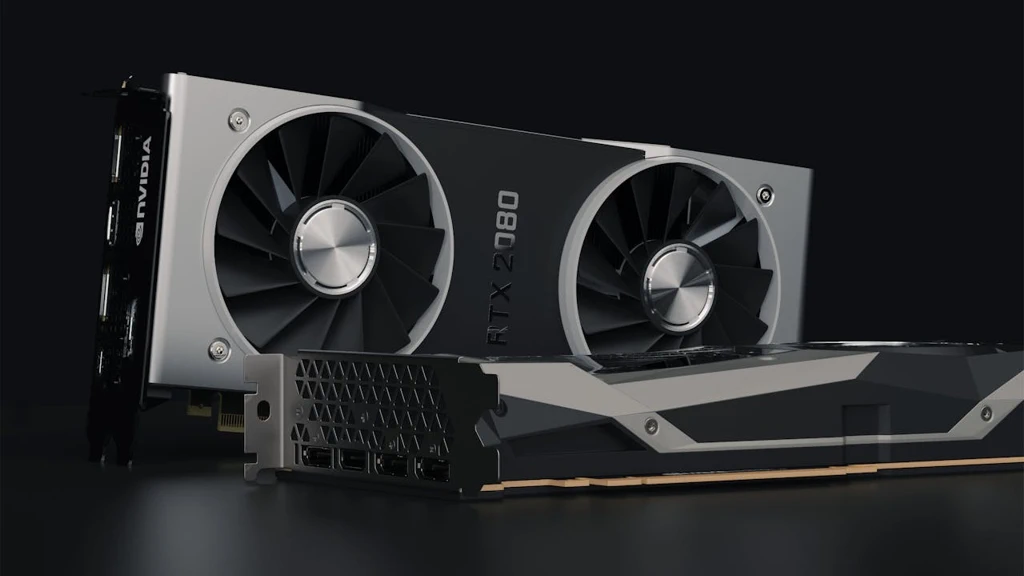 Absolutely! When it comes to performance, dedicated GPUs are designed to handle heavy graphics workloads.
Unlike integrated graphics, which share PC resources, dedicated GPUs have their own dedicated processing and memory resources.
These dedicated resources mean they can render images, animations, and videos much more quickly, and let’s not forget about the most important reason…PC Gaming!
If you fall into the content creator or gamer category, you’ll have a much better time using a dedicated GPU.
However, the AMD APU integrated graphics have achieved some impressive performance benchmarks.
To save money, you might consider an AMD APU if you’re building a new PC and play less demanding games at a lower resolution, such as 1080p.
So, while a dedicated GPU is “Absolutely” the best option for performance, some recent integrated graphics options may work fine for a small niche of users.
PC Uses That Don’t Need a Dedicated GPU
If you’re a casual PC user who does light office work, web browsing, and occasionally plays a few basic games, an integrated graphics PC should work fine for you.
Basic Office Use
 When it comes to basic office tasks, having a machine with integrated graphics can be more than enough.
Tasks like word processing, spreadsheets, and web browsing don’t require much graphics processing power.
So, if all you use your PC for is light office work, such as creating presentations, managing emails, or using productivity software, an entry-level PC with integrated graphics is an affordable choice.
Budget Gaming
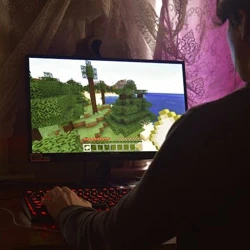 What does “budget” mean? It’s more like “older” titles that may have needed a dedicated GPU back in their day, but now they run fine on today’s integrated graphics.
For many gamers, the first game title that comes to mind is the old classic Counter-Strike.
When it was released, this first-person shooter played great on lower-end systems. So, imagine how it will run today.
Plus, the latest integrated graphics are more capable than ever, meaning you can enjoy classic games like Counter-Strike without breaking the bank!
Of course, a few graphically demanding outliers like Cyberpunk and The Last of Us will make your integrated graphics cry!
When You’ll Need a Dedicated GPU
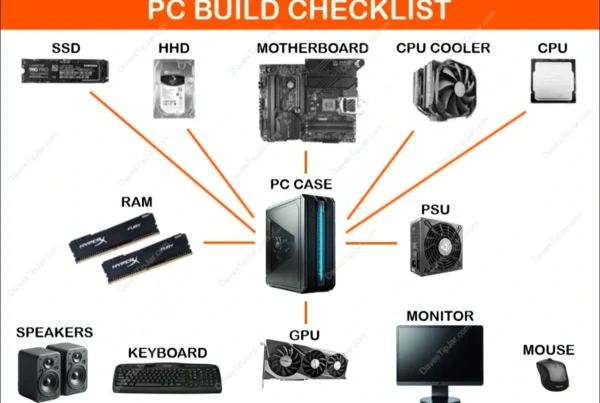
Now, if you’re into hardcore gaming, graphic design, video editing, 3D animation, or even hosting AI LLM models, a dedicated GPU isn’t just practical—it’s necessary. Having a compatible motherboard is also important, especially if you plan on using multiple graphics cards. Make sure you have the needed PCIe slots available.
These activities demand the extra power and capability that integrated GPUs can’t provide.
 Hardcore Gaming
If you’re a gamer who understands that “Frames Win Games”, you need a dedicated GPU (and a high refresh rate monitor), especially for competitive eSports.
Along with Cyberpunk 2077 and The Last of Us, games like Call of Duty, Battlefield, and CS: GO 2 also require skill and a powerful GPU for the best performance.
This recommendation is a generalization, as many other factors affect performance, including your CPU and in-game resolution settings.
Also, a dedicated GPU will give you the best frame rates at higher graphics settings.
Plus, the extra GPU processing power makes a huge difference if you’re streaming your gameplay or capturing in-game moments.
So, if you’re serious about gaming, it’s a dedicated GPU for you!
 Graphic Design
Are you a professional graphic designer? If so, a dedicated GPU is necessary when using high-end design software. (No, MS Paint doesn’t count.)
For applications such as Adobe Photoshop or Illustrator, a Dedicated GPU will significantly reduce the time required to process high-resolution images and complex designs.
I was upgrading my GPU recently, and before installing the new one, I tried running one of my professional design apps on only the integrated GPU.
Nope, it was having none of it!
 Video Editing
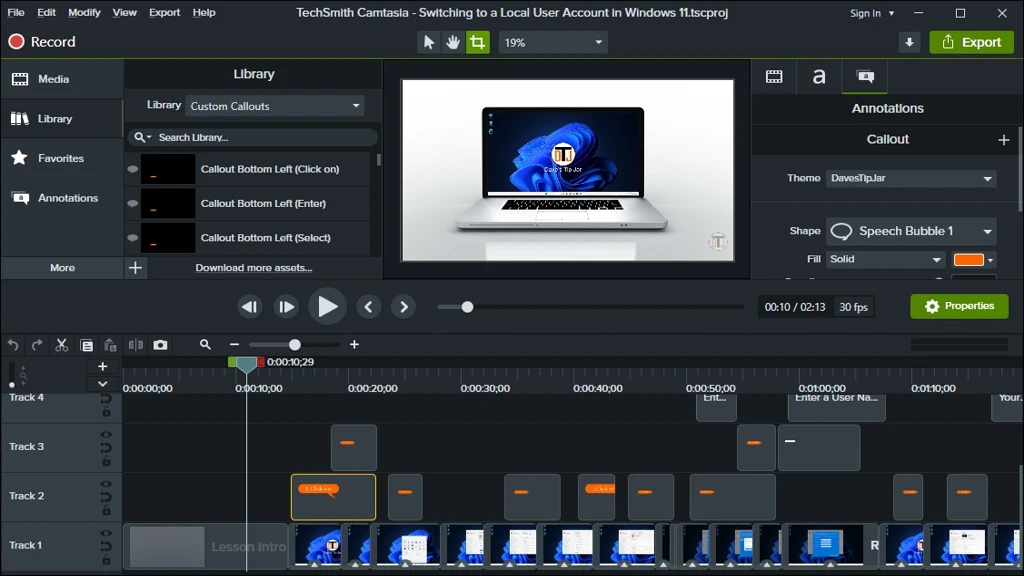
I do some video editing as well, and while basic apps run just fine on the integrated graphics, the software I use needs a dedicated GPU to perform at its best.
Most of my video projects are in 1080p, and my RTX 3080 handles it just fine.
However, I imagine that rendering projects up to 4K could push some entry-level GPUs to their limits. Especially those with limited video memory.
Also, working with the editor is even more demanding than watching the final output.
It’s important to see real-time changes without any playback stuttering or lag.
I mentioned upgrading my GPU earlier, and this was the reason why. Now, my design workstation has the GPU it needs.
For video editing, a top-end GPU is definitely worth it!
 3D Design and Animation
Do you design video games? I’m sure not many of you do, but how fun does that job sound!
I played around with 3D modeling and animation decades ago using a program called Animation Master, and trust me, this isn’t going to be a fun time if you’re using integrated graphics.
It took up to 90 minutes to render a 5-second clip of a single object. Those were some slow, painful times!
A top-tier GPU is a must, especially when previewing and rendering your final project.
It’s definitely a must for this type of work!
 Hosting AI LLMs (Large Language Models)
I’ve been playing around with self-hosting AI large language models (LLMs).
Not so much because I need a private ChatGPT, but rather to learn the tech and what’s involved to achieve a working model.
I soon discovered the high-end hardware demands these machine learning language models require.
Although I have an old GPU crypto-mining rig full of high-end video cards sitting idle to play around with. (GPU Mining is Dead!)
I’ve read that LLMs need lots of memory and speed to ensure smooth operation and decent response times.
I’m just scratching the surface and making sure I see the “whole picture” before diving in. I suspect I’ll soon be headed down the rabbit hole.
However, once I learn more, I’ll likely write a separate article dedicated to DIY LLMs!
Do I Need a Dedicated GPU to Use Multiple Monitors
 If you’re like me, you have two or more monitors connected to your PC. In the image above, my sim racing rig has three (3) 1080p monitors connected.
So, is a dedicated GPU required?
The short answer is…maybe.
Here’s why.
Limitations of Using Integrated Graphics for Multiple Monitors
There are a few items to consider before using integrated graphics for multiple monitors.
First, your computer’s motherboard would need to provide multiple monitor connections, such as one HDMI and one DisplayPort, or you’d need to use monitors that support DisplayPort daisy chaining. (DP Daisy chaining is for another article)
Also, integrated graphics may not deliver the performance you need, especially when running several demanding applications simultaneously.
Plus, integrated graphics typically have less memory and lower performance than dedicated GPUs, which may limit your monitor options.
Monitors like your TV are made up of pixels, so monitors with higher resolutions, such as QHD (2K) or UHD (4K), have more pixels to control. The greater the pixel count, the greater the demand on your graphics processor.
Lastly, not all motherboards support multiple monitors via integrated graphics, and many disable integrated graphics automatically when a dedicated GPU is installed.
Just because your motherboard has multiple video connections doesn’t mean it can support any monitor you connect to it.
Advantages of Using a Dedicated GPU for Multiple Monitors
If you have the budget, investing in a dedicated GPU for multi-monitor use is the way to go.
As mentioned throughout this article, dedicated GPUs are designed to handle almost anything you can throw at them, from gaming to content creation and more!
Another advantage is flexibility—many dedicated GPUs offer multiple outputs, allowing you to connect several monitors (often up to four) without any issues.
Also, you’ll have more memory and higher bandwidth with a dedicated GPU. So, you’ll never need to worry about the size and resolution of the monitors you’re connecting to.
However, be aware that dedicated GPUs can be expensive, with some higher-end consumer models costing over $ 3,000. Plus, they use much more power than integrated graphics.
So, while integrated GPUs can handle a couple of monitors, dedicated GPUs offer more ports and better performance overall.
If price and power are not a concern for you, a dedicated GPU is the way to go!
Frequently Asked Questions
What’s the difference between integrated and dedicated graphics?
Integrated graphics are built into the CPU, while dedicated GPUs are separate cards.
How do I know which type of graphics I’m using?
Check the connections between your monitor and PC. If it’s connected to the motherboard, you’re using integrated graphics. If it’s connected to a card in a PCIe slot, you’re using a dedicated GPU.
Can laptops have dedicated GPUs?
Yes, but they may be less powerful than desktop GPUs due to size constraints.
When are integrated graphics good enough?
For basic tasks like office work, web browsing, and casual gaming.
When is a dedicated GPU necessary?
For demanding tasks like hardcore gaming, graphic design, video editing, 3D animation, and AI applications.
Are dedicated GPUs always faster?
Generally yes, but modern integrated graphics have improved significantly. Especially from AMD.
Final Thoughts on Integrated vs Dedicated Graphics
If you fall into the “I’m good with integrated graphics” category. You just saved a ton of money!
Otherwise, break out the checkbook if you’ve decided that a dedicated GPU is the way to go!
Okay, it may not be “that” expensive, but you should consider several things to avoid buyer’s remorse.
First, are you looking to buy a new computer? Perhaps a gaming laptop supporting a dedicated graphics card. It’s a powerful and portable option.
Otherwise, if you need a full-size video card, be sure it’s the right fit. To parody an old saying, “Measure twice, buy once!” and by that, I mean that today’s mid to high-end GPUs are huge in size, so make sure the GPU you choose fits your motherboard and PC case.
I made this mistake once, but solved it by moving my AIO CPU Cooler to the top of my case.
Next, think about how you use your PC. While we talk about this throughout the article, ask yourself whether you’re a high-end user, such as a gamer, a content creator, or someone who needs extra monitors for multitasking.
Performance is another consideration; look for benchmarks and reviews on how different GPUs perform in the way you plan to use them.
And finally, don’t get GPU fever. It’s tempting to splurge on a top-end model. However, there are plenty of options that offer a balance between performance and cost.
If you’re a gamer, consider the games you play and the GPU features they support, such as Ray Tracing, DLSS (Nvidia), and FSR (AMD).
Ultimately, the GPU you choose should come down to your personal needs and how you use your PC.



I once brought home an old office PC my company was replacing for my son thinking it would be good for the games he played. Boy did he set me straight as soon as he opened it up and saw there was no GPU in it! Fortunately, there was a slot to install one so off to BestBuy we went. Even this old dog learned a new trick that day!
OMG! Sorry, but I just laughed out loud! Today’s kids are so in touch with today’s tech! Especially if it’s something they’re really interested in. I’ve learned to never underestimate them! 🙂
I just checked my PC and it does have a dedicated graphics card. Unfortunately, I had my monitor plugged into the port on the motherboard! Man do I feel stupid!
It happens more than you know. On some new PC’s with dedicated graphics, there will be a sticker over the motherboard connection warning to connect the monitor to the expansion card port. Although not all system builders do this. Not knowing which type of integrated graphics your CPU supports, you wouldn’t have noticed it unless you tried to use a demanding graphics app or a high-end PC game. I’m glad you were able to sort it out!