
During the “Before Times” around the mid-90s, computer power supplies were not a major factor when building a new PC.
Why, you ask?
Because these early graphics cards drew anywhere from 30 to 100 watts at most (remember 3dfx Voodoo video cards?). I’m that old, but don’t laugh; they were the video card to have back then.
The CPUs from that time were even less of a factor, with most drawing 25-50 watts max.
Times have sure changed! Today, a top-end GPU under a full gaming load can draw anywhere from 300 to 500 watts! Power levels like these are considerably more demanding of your PSU!
My early desktop computers from the mid-90s had, at best, a 350-watt PSU. It was more than enough for the components of that time, so there was little chance of overloading it.
Nowadays, it’s a different game, and you need to plan your PC build to make sure you choose a PC power supply rated to handle all the components under their heaviest workloads.
Choosing a power supply for your PC is easy, but knowing what’s written on the box will help you make the best choice for your build.
Let’s look at some features and ratings to consider.
Key Takeaways
After reading this article, you’ll understand the requirements of different types of power supplies for PC builds, along with their features and ratings.
- How to determine wattage requirements
- Choosing the right size for your PC case
- Standard features to look for
- What the 80-Plus efficiency ratings mean
- How to spot a fake certification
- Learn the different connector types
By knowing the differences, you’ll be better prepared to choose the best power supply for your PC.
What is a Power Supply Unit (PSU)?
A Power Supply Unit (PSU) is exactly what it does. It provides power for your computer system.
It converts the 110V or 220V (AC) power from your wall outlet into DC power that your computer’s internal components use.
Just as the CPU is the brain of your PC, the power supply is the heart of your computer, pumping power to all the system components.
The power supply is not a component you want to cheap out on. Considering it touches every part of your computer, you’ll want a reliable power supply from a trusted brand that offers the best protection against power surges, spikes, and potential unit failure.
How Power Supplies Work
Understanding how a power supply works can help you appreciate its importance in your computer system.
Converting AC power to DC power involves several stages, each of which is important for delivering stable power to your PC.
Input Stage
This is where the power supply receives AC power from the mains (wall outlet). This stage includes a power cord, a fuse, and a switch. Simple right?
The power cord connects the PSU to your wall outlet, while the fuse safeguards against overcurrent, protecting your power supply and PC components from potential damage.
And then the switch allows you to turn the power supply on and off.
Output Stage
Once the AC power is received (input stage), it is converted (transformed) into DC power suitable for powering your PC.
This is the stage where all the magic happens. It includes a voltage regulator, a transformer, and output connectors.
The voltage regulator ensures that the output voltage remains stable and within the required range to power all connected devices, such as the motherboard, GPU and storage devices.
Then the transformer steps down the voltage to the required DC output levels for all connected devices.
It’s a pretty basic process. (AC power in > Regulate > Transform > DC power out).
Understanding PC Power Supply Types
First, let’s talk about a basic requirement: the “Form Factor.” The PSU you choose will depend on the computer case you’re using.
As mentioned above, the power supply is the heart of your computer, and nothing works without it. So, one of the first considerations is, “Does it fit?”
There are many form factors available. However, ATX power supplies are the standard for most desktop PCs. This standard factor applies to most cases and covers all common component connections.
Let’s look at some common PSU form factors.
PC Power Supply Form Factor
Every PC case is designed to fit one or two types of PC power supplies.
Choosing the right desktop power supply is important for optimal performance and compatibility with your PC components. Plus, make sure it includes all the cable connections you’ll need for your build.
Here are the most common form factors for desktop PCs.
- ATX PS/2: This is the classic choice and the standard form factor for most mid to full-size desktop computer cases. It’s rectangular, measuring 150mm (W) x 86mm (H) x 140mm (D), or larger for the top-end wattage models.
- ATX PS/3: Almost identical to the PS/2 variant, this PSU typically measures 150mm (W) x 86mm (H) x 100mm (D). However, some models may be as deep as 139mm, just under that of a PS/2 variant.
- SFX: Smaller than ATX form factors, SFX power supplies are used in compact computer cases such as Micro-ATX or Mini-ITX. These are often mistakenly referred to as Mini-ATX PSUs. Their dimensions of 125mm (W) x 63.5mm (H) x 100mm (D) make them about two-thirds the size of a full ATX PSU.
There are several other PSU form factors, but we’re focusing on the most commonly used in today’s desktop computers.
 Power Cable Design
When choosing a power supply unit (PSU), the design of power cables is just as important as the PSU itself.
One thing to consider is the length and flexibility of these cables. Most power supply manufacturers provide the lengths of each included power cable.
Cable length is important, especially if you’re building a system in a large computer case. More length allows for cleaner cable management.
The cable design also varies between manufacturers. Some high-end PSUs include braided-sleeved cables for a clean look, especially for PCs with tempered glass front and side panels.
Some cables have a flat ribbon design, making them easier to route in tight spaces.
And, lastly, you’ll still find the yellow and red wires often referred to as the (Ketchup and Mustard) cables.
These are typically found on very low-end PSUs, often found in budget PCs.
A well-designed power cable allows for a tidy build and improves airflow and cooling performance.
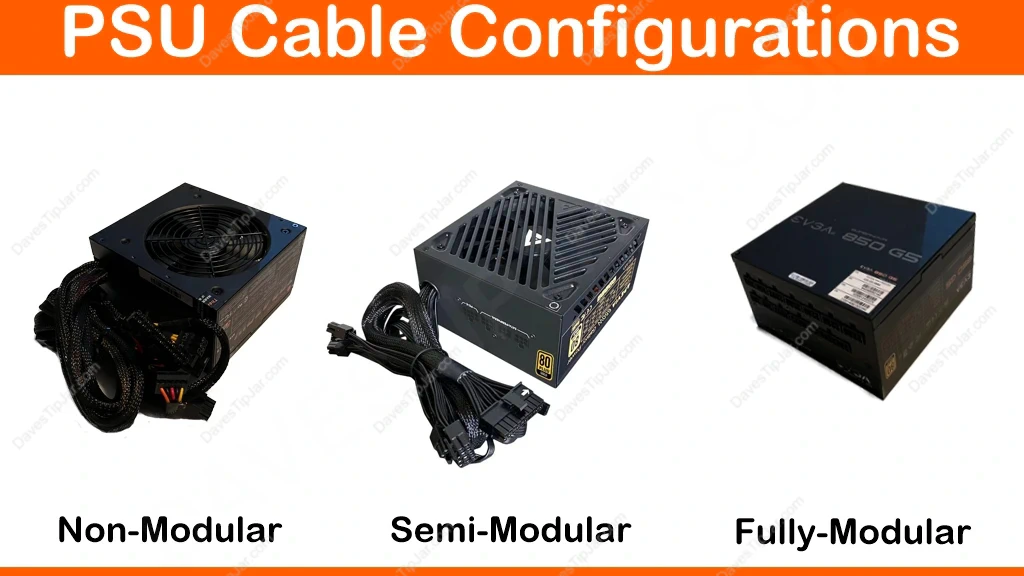
Here are some of the cable configurations to choose from.

Non-modular: Think of it as the octopus of power supplies. All the cables are hard-wired, so you’ll need to find a place to tuck away the ones you’re not using.
These work best for non-visual cases, but can become a tangled mess if your case has limited space.
This configuration is usually found in lower-end models and brands.
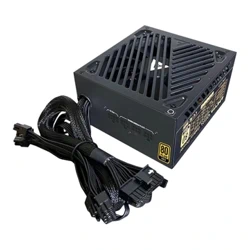
Semi-modular: This is the middle ground, offering a balance between cost and convenience. A semi-modular PSU will have the must-use 24-pin ATX motherboard and CPU power cable hard-wired.
In contrast, the optional PCI-e, SATA, and other peripheral power cables are detachable (modular).
You can still show off your cable-management skills with only the necessary cables.
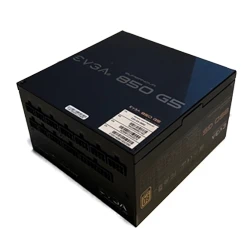
Fully modular: Let’s keep it neat by going fully modular. This option is basically the same as the semi-modular, except that all cables can be removed.
If you’re picking PC parts for your next PC build. This option is the preferred choice.
All my builds use fully modular power supplies.
So why one over the other? I always choose fully modular computer power supply anytime I build a new desktop computer. Should any cable become damaged, you can easily order a replacement from most manufacturers.
Quick Tip: Modular PSU cables are typically not interchangeable between different power supply units. DO NOT mix and match cables between different models or brands unless you know they are compatible. Otherwise, you can damage the connected PC components.
Power Supply Features
These are the top features to consider when choosing a PC power supply.
Some of these features are “nice to have” but can add to the cost of the PSU.
However, some features are standard across most trusted brands for performance and safety.
Power Output in Watts
If you’re a high-end gamer, you’ll need to factor this in.
Protection features may kick in and shut down your PC if your PSU is underrated for your PC component power consumption needs.
This issue happened to me recently, and I had to upgrade my flight-sim PC’s PSU to an 850-watt one after upgrading my GPU.
Most GPU manufacturers recommend the minimum power supply wattage for their different models.
So, a simple way to look at this is to use a PSU rated at the recommended wattage and add 100 watts for overhead.
It’s about finding that sweet spot—something we discuss in more detail later in this article.
PSU Protection Features
These features are the power-limit guardrails protecting your PC.
Things can go wrong without these protections for overvoltage, undercurrent, and other electrical conditions.
You might find some smoke trying to escape your PC, and that’s a bad thing!
+12V Power Rails
Think of these +12V power rails as dedicated power highways that your hardware needs to run smoothly. (I just can’t stop with the roadway metaphors!)
Before choosing a power supply, consider the total wattage and the number of +12V rails it provides.
While a single rail will simplify power distribution, multiple rails provide better load balancing for high-performance components such as GPUs.
If you’re building a top-end gaming or content-creation PC, you should consider protecting these costly components with a quality PSU.
Eco Mode
Eco mode is a feature that improves energy efficiency, reducing energy consumption and lowering electricity costs.
When eco mode is enabled, it helps reduce energy consumption during low or moderate power usage.
You’ll typically find a switch or toggle button near the power switch on your PSU to enable or disable this mode.
When enabled, the power supply fan will run at a lower speed or turn off completely until it reaches a specific temperature or power draw threshold.
Eco mode means your PC will operate quietly and use less electricity. And every little bit helps with today’s power costs!
Fanless Design
Wait… they have fanless power supplies? Yes, they do, but there are some things to consider.
Except for a few costly options, most fanless PSUs are power-limited and may not be the best choice for a high-end gaming PC.
However, they are a perfect choice if you’re building a media PC for your entertainment center, since cooling fans can get a bit loud.
I have a media PC that uses a traditional PSU with a fan. However, it does support eco mode, so I only occasionally hear them when the fan speed ramps up for a few seconds to cool things down.
So why one over the other? I always choose a fully modular. Should any cable become damaged, you can easily order a replacement from most manufacturers.
What Are 80 PLUS Efficiency Ratings
Efficient power supplies are designed to generate less heat, thereby improving thermal management and extending component lifespans.
80 PLUS efficiency ratings indicate that at least 80% of the power drawn is converted to useful output, with the remaining 20% lost as heat.
Above the base rating, which some refer to as “Standard” or “White”, the additional 80 Plus ratings are categorized as Bronze, Silver, Gold, Platinum, and Titanium, each representing an increase in efficiency above 80.
High-efficiency power supplies help to minimize voltage fluctuations and prevent potential system crashes, enhancing overall system reliability.
For instance, a Gold-rated PSU should achieve at least 87% efficiency at 20% and 100% load. Plus, an impressive 90% at 50% load. Even more if you’re using 230V (see chart)
Of course, the higher the rating, the more you should expect to pay for the PSU.
Most users choose the 80 Plus Gold because it seems to be the middle ground between price and efficiency.
So why one over the other? I always choose a fully modular power supply when building a new desktop PC. Should any cable become damaged, you can easily order a replacement from most manufacturers.
| Efficiency Ratings | Efficency at Rated Load: 115v (230v) | |||
|---|---|---|---|---|
| 10% | 20% | 50% | 100% | |
| 80 Plus | - | 80% (82%) | 80% (85%) | 80% (82%) |
| 80 Plus (Bronze) | - | 82% (85%) | 85% (88%) | 82% (85%) |
| 80 Plus (Silver) | - | 85% (87%) | 88% (90%) | 85% (87%) |
| 80 Plus (Gold) | - | 87% (90%) | 90% (92%) | 87% (89%) |
| 80 Plus (Platinum) | - | 90% (92%) | 92% (94%) | 89% (90%) |
| 80 Plus (Titanium) | 90% (90%) | 92% (94%) | 94% (96%) | 90% (94%) |
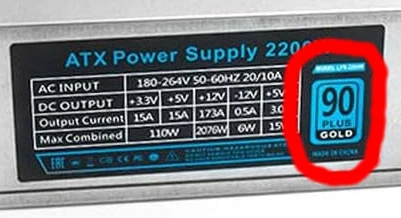 BEWARE OF FAKES! Some are as obvious as this fake 90 PLUS Gold label. However, many PSUs labeled 80 PLUS have not been tested.
This can occur if a power supply is rebranded or a component is changed during manufacturing, but the part number remains unchanged.
It’s a shady practice, but it happens.
Different PSU Connector Types
When choosing a computer power supply (PSU), it’s important to know the different power supply connector types and to make sure the PSU you choose includes all the connections you’ll need.
Here are the most common connectors:
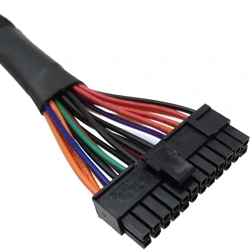 24-pin ATX Connector: This is the main power connector, typically split into a 20+4-pin dual connector for backward compatibility with older 20-pin motherboards.
Other split-dual-connector variations are available from different power supply manufacturers, but they will all work with modern motherboards.
This cable takes a bit of effort to plug in, so use caution when connecting it to avoid damaging your motherboard. I say this because I’ve actually damaged a motherboard plugging this cable in.
 4/8-pin CPU Connector: Modern CPUs are power-hungry and require dedicated power.
This connector splits into two (2) 4-pin connectors for motherboard compatibility.
Older boards might use a 4-pin connector, while newer ones typically use an 8-pin connector and a 4-pin connector (or even two 8-pin connectors for high-performance setups) to ensure reliable power delivery.
Most modern motherboard layouts place the CPU power connector(s) along the top edge of the motherboard for easy cable management.
So, make sure you plug in all the CPU power cables your motherboard supports.
 6-pin and 8-pin PCIe Connectors: If you’re a gamer and use a high-end GPU, these connectors supply the extra power your graphics card (GPU) needs.
This connector splits into two 6-pin connectors, supporting all modern GPUs and some older video cards.
A 6-pin connector provides up to 75 watts, while an 8-pin connector provides up to 150 watts, allowing for better performance during intense gaming sessions.
I have a top-end RTX 3080 in one of my home computers that can draw up to 450 watts, which is why it has three (3) 8-pin power connectors.
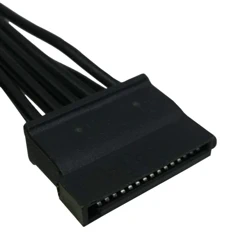 SATA Power Connectors: SATA power connectors are typically flat and slim and are used mainly to power older mechanical hard drives, current optical drives and solid-state drives (SSDs).
Depending on the connected device, they typically come in a 15-pin configuration and provide 3.3V, 5V, and 12V power.
When building or upgrading your computer, make sure the PSU you use includes enough SATA power connectors, especially if you plan to add several SATA drives or devices.
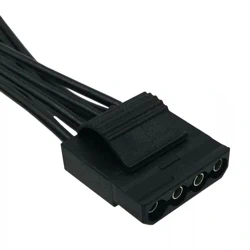 Molex Connector: While Molex connectors are less common nowadays, the 4-pin Molex connector is still used for some older hardware, such as certain fans, old optical drives and really old ATA-IDE hard drives. (I still have some old ATA drives sitting on a shelf)
Most power supplies include one or two Molex adapters for backward compatibility.
Today’s power supplies will include all the connectors you need for your PC build.
The PSU’s power output determines how many power cables are included.
More power means more support for connecting components. So again, make sure the power supply you choose provides all the cable connections you need.
Latest ATX Power Standards
Wait, there are more standards I need to know! Don’t run away; it’s not what you think.
With the latest GPUs requiring more power than all other PC components in your system combined, new standards have been adopted to meet these needs.
ATX 3.0 vs ATX 3.1 – What’s the Difference?
These are efficiency standards that also introduced two new high-power connectors.
So, here’s a quick overview to consider as you plan your next build.
ATX 3.0: This standard introduced new efficiency specifications and power-delivery improvements, establishing a robust baseline for higher-wattage requirements, especially for the latest GPUs and CPUs.
It also introduced the new 12VHPWR high-power connector for the latest Nvidia GPUs.
However, if you’ve been looking into GPUs, you’ve likely come across several reports of these connectors failing (melting) under high power loads.
ATX 3.1: Replaces ATX 3.0 to address these issues. This new standard also introduced a new 12V-2×6 connector that addresses some of the problems found in the 12VHPWR version.
Getting to Know the New GPU Connectors
It was inevitable that today’s power-hungry GPUs needed a new specification to provide better power management.
Here are some details on these two new connectors and why one was quickly replaced by the other.
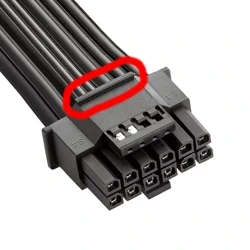 12VHPWR Connector: The 12VHPWR connector changed the game for high-performance graphics cards.
This 16-pin connector (12 power & 4 sensing) supplies up to 600 watts of power (525W from the connector and 75W from the PCIe slot) while combining multiple voltage rails into a single connector.
The latest Nvidia graphics cards support this connector, so if you’re using an Nvidia 40-series GPU or higher, it uses this connector.
However, there have been some issues with its design, and we will cover this in the next section.
 12V-2×6 Connector: The latest 12V-2×6 connector directly replaces the 12VHPWR connector and fixes many reported issues.
This latest high-power connector is nearly identical to its predecessor. One major change is that it has shorter sensing pins to prevent the GPU from powering on unless the connector is fully seated.
Additionally, this connector supplies up to 675 watts of power (600W from the connector and 75W from the PCIe slot)
The 12 power pins have also been widened to provide a larger contact surface to help avoid overheating.
However, one obvious change is the removal of the ridge and the base of the four (4) sensing pins, as I highlighted in the images.
Now, I have seen some cables labeled as 12V-2×6 that still include this ridge, but if it doesn’t, you can be fairly sure it’s this new and improved version.
Because these changes were minor, this new connector is backward-compatible with the 12VHPWR, so you shouldn’t have any compatibility issues with previously supported devices.
If you’re upgrading your gaming PC or building a new one, a power supply supporting this standard would be an excellent future-proofing choice.
Want to know more? Here’s a good video from a popular YouTube channel about ATX 3.0. This information remains relevant despite the ATX 3.1 changes I mentioned above.
Power Supply Installation and Safety
It’s time to talk safety. I know we will all do what we do, but I will mention it anyway!
Always use care when installing your power supply, and never open the enclosure for any reason.
There are power capacitors in there that hold enough charge to ruin your day, like permanently!
Here are some quick tips to follow:
- Unplug the Power Cord: Always disconnect the power cord from the mains before installing or removing the power supply. This simple step can prevent electrical shocks and damage to your components.
- Use Anti-Static Precautions: Static electricity can damage sensitive components. Use an anti-static wrist strap or mat to ground yourself and prevent static discharge when connecting components.
- Check Compatibility: Make sure the power supply is compatible with your PC components and fits in your case. Measure twice, buy once!
- Follow Manufacturer Instructions: Always follow the manufacturer’s instructions for installing the power supply. I know who uses instructions!
- Consider a Modular Power Supply: Using a modular power supply simplifies installation by reducing cable clutter and improving airflow within your case, resulting in a cleaner, more efficient build.
- Secure the Power Supply: Make sure the power supply is firmly screwed into the case to prevent it from moving around and causing damage. It comes with four (4) screws; use them all!
The power supply in your PC is the only high-voltage device. So, use good sense when installing it.
Hopefully, you will better understand how power supplies work and why choosing a quality brand to provide stable power to all your components is important.
Before You Buy a Power Supply
Before you grab any old power supply off the shelf, be sure you know what to look for in PC power supplies and keep a few things in mind so you won’t have to return or replace it later.
How much power (watts) do you need? The proper way is to calculate the power requirements for every component installed in your PC.
While this will certainly give you a target number, if you’re building a typical gaming PC and installing a high-end GPU, the manufacturer will recommend a minimum required power supply that accounts for all the other standard components.
Allow for future upgrades: As mentioned before, take the manufacturer’s wattage requirement and add 100 to it. This will give you a little overhead for future upgrades.
Make sure it will fit in your PC Case: Measure twice, buy once. Check your case’s dimensions before purchasing.
While most mid to large PC tower cases can accommodate a standard ATX power supply, check to make sure you’ll have plenty of cable clearance.
Often, some cases have hard drive bays and cages mounted in front of the PSU, making space for the power cables tight.
Quality and brand matter: You’ve likely invested at least $1,000 in PC parts. Why trust them with a cheap off-brand power supply?
Trusted, well-known manufacturers have a brand to protect. Plus, they offer reliability and warranty support.
Consider cable management: A clean build with proper cable management looks good and helps with PC cooling.
Some PSUs may include flat ribbon cables, braided cables, or individually sleeved cables, so consider this when choosing.
Some look better than others and are easier to route throughout the case.
It’s just my personal preference, but modular power supplies will provide a better build experience with less frustration.
Frequently Asked Questions
How do I know if my home’s electrical circuit can handle a high-wattage PSU?
While the PSU supplies power to your PC, a high-end unit (e.g., 1200W or 1600W) draws significant current from your wall outlet. In some older homes, a powerful gaming PC combined with a space heater or air conditioner on the same circuit can trip a breaker. It is helpful to know that a standard 15-amp household circuit in the US supports roughly 1,800 watts total.
Is there a downside to buying a PSU with way more wattage than I actually need?
Aside from the higher upfront cost, older or lower-quality PSUs were significantly less efficient when running at very low loads (e.g., a 1000W PSU powering a PC that only needs 100W at idle). However, modern high-efficiency units (Gold or Titanium) have mitigated this, and having “overhead” generally allows the PSU to run cooler and quieter since the fan doesn’t have to work as hard.
What is the difference between “Continuous” wattage and “Peak” wattage?
When checking the box, always look for the Continuous Power rating. This is the amount of power the PSU can output indefinitely. Peak Power refers to the maximum wattage the unit can handle for very short bursts (seconds or milliseconds). If a PSU is marketed primarily by its Peak wattage, it may be a sign of a lower-quality unit that cannot sustain that load during a long gaming session.
Can I use a PSU from a different country if I move?
Most modern, high-quality power supplies are “Auto-Sensing,” meaning they can accept a range of input voltages (typically 100V–240V). If your PSU has a small manual toggle switch on the back labeled “115/230,” you must flip it to match the local voltage. If it has no switch and is a quality active-PFC unit, it will likely work anywhere in the world with just a simple plug adapter or a new regional power cable.
How long does a power supply typically last before it needs to be replaced?
A high-quality PSU can last 7 to 12 years, and many premium brands offer warranties in that range. However, the electrolytic capacitors inside degrade over time, especially if exposed to high heat. If you notice your PC rebooting randomly under load or hearing a high-pitched whining noise (coil whine) that wasn’t there before, it may be reaching the end of its lifespan.
Final Thoughts
Building a PC can be a fun experience or an absolute nightmare without some PC-build planning.
While the power supply is just one of many decisions you’ll need to make for your build, understanding how to choose a power supply for your PC is important.
Also, make sure the PC power supplies you’re considering will fit your case and leave enough room for all the power cables.
When installed properly, the cables should be tucked away neatly to avoid disrupting airflow. Plus, they’ll look good, too!
Quality matters, so the PSU is one component you don’t want to skimp on.
So, with a basic understanding of what to look for, you’ll find the best PSU for your build.



When you say ‘single rail’ vs ‘multi rail’ can you give some practical examples of when one might be better than the other?
If you like to play PC games/sims like me and plan to use a GPU with a high TDP (lots of watts under heavy loads), having multiple “rails” can provide some overcurrent protection. However, many of today’s modern power supplies are built using high quality single rail designs. They should work just fine in every circumstance, assuming you purchase from a well-known, trusted brand.
Also, remember there is a lot of “junk” out there. The power supply is the component powering all the other parts you spent your hard-earned money on for your build. It’s the only component I would NOT compromise on. If you see a 1000 watt p/s for $95.00 from a brand you don’t recognize…run away from that! 🙂
This was very helpful! I never really took the time to understand all the different efficency ratings. It’s crazy about the fakes, 90 Plus Gold? LOL!
I’m glad you found it helpful! Ya, it’s crazy the BS some manufacturers try to pull with the bogus power ratings.