If you’re running out of space to store your files and photos, there are several PC Storage options to choose from. I’ve been there and just recently added a 4TB NVMe drive to one of my gaming rigs. Thankfully, before the crazy storage and memory pricing we’re seeing today!
With all the storage options available nowadays, I’ll do my best to keep it focused on what you would find in a typical PC parts store, whether online or at a brick-and-mortar store like MicroCenter, if you’re lucky enough to have one close by.
Let’s review the essentials and make sense of it all. And, of course, I’ll toss in more of my bad humor along the way!
Key Takeaways: PC Storage Types
Let’s review the different PC storage types that are available. I’ll also include some pros and cons of mechanical and solid-state drives.
- HDDs (Hard Disk Drives): The oldest type of storage device, still widely used today. These inexpensive hard drives offer the largest storage capacities, making them ideal for users with large storage needs. However, a hard drive is also slow by comparison and can be noisy during use.
- SSDs (Solid State Drives): This newer storage type has become increasingly popular. They are much faster than HDDs and are less susceptible to damage. However, they are also more expensive than HDDs of the same storage capacity.
- NVMe (Non-Volatile Memory Express): This type of SSD offers even faster speeds than traditional SSDs. They are the most expensive and fastest storage devices.
- External drives: Storage devices that typically connect to your computer via USB, Thunderbolt, or other interfaces. They are a convenient way to store and transport your files.
- NAS (Network Attached Storage): Dedicated storage devices that multiple computers can access over a network. They offer advantages over external drives, including greater security and performance.
 Understanding Internal PC Storage Types
You’ve probably seen the acronyms HDD, SSD, and NVMe. These represent the current PC data storage technologies.
So, without storage, your computer would be like a goldfish, forgetting everything every time you turn it off. Not ideal, right?
Let’s start by understanding these different storage types and their pros and cons.
What is an HDD (Hard Disk Drive)?
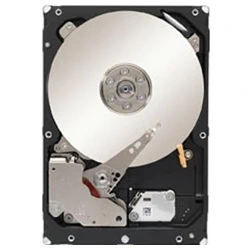 These are the old-school spinning disks—literally. They’re cost-effective and offer large storage capacities, perfect for hoarding all those selfies and videos or backing up other important files.
HDDs are often used for data backups due to their large storage capacities and cost-effectiveness.
Since these hard drives cost the least per Gigabyte, they are more budget-friendly than their newer SSD counterparts.
While a mechanical hard drive may not be the fastest option, it still gets the job done and is often used as a secondary storage drive on your PC.
Pros and Cons of Using a Mechanical Hard Disk Drive (HDD)
There are some advantages and downsides to consider when using an HDD.
Pros:
- Cost-Effective: HDDs are a cost-effective type of PC storage, usually costing less per Gigabyte than SSDs. This low cost makes them a great choice for anyone looking for large storage capacity at a low price.
- Larger Storage Space: If you’re the type who collects tons of movies, music, or games, HDDs offer the largest storage sizes. As of this article, the largest HDD available is a 32TB Seagate drive (Seagate IronWolf Pro). However, if you’re an everyday user and ever need this much, you might reconsider your data-hoarding ways!
- Reliability for Long-term Storage: HDDs are proven reliable for long-term data storage, especially for backups. While 3-5 years is a typical life span, I have some drives in service that are over eight (8) years old.
Cons:
- Speed: HDD speed is slow by today’s standards due to mechanical limitations, such as the platter’s rotational speed. Because of this, they are now mainly used for secondary storage or as long-term backup drives.
- Fragility: HDDs have moving parts. The shock from bumping into a working drive or dropping one can cause internal damage. Careful handling is required!
- Noise: HDDs can also be noisy due to their moving parts, especially under heavy read/write workloads.
Consider these pros and cons to help you decide whether an HDD meets your storage needs!
What is an SSD (Solid State Drive)?
 An SSD is a solid-state drive, the next-generation storage technology. Instead of relying on spinning disks, SSDs use flash memory to store your data, which means they can access files almost instantly—talk about a game-changer!
Geek Speak Warning! SSDs use floating-gate transistors to store data, allowing them to retain information even without power.
Plus, they work without moving parts, making them faster, quieter, and more durable. The SSD controller manages data retrieval and storage processes to help optimize the drive’s performance and lifespan.
Because SSDs are much faster than older HDDs, they’re ideal for tasks that require quick load times, such as booting your computer or launching games.
In my spare time, I play a lot of Microsoft Flight Simulator, and this game takes forever to load.
I have mine installed on an NVMe Drive, and even then, it can take up to a minute to load. I couldn’t imagine how long it would take on an old mechanical HDD.
While SSDs might cost more per Gigabyte than HDDs, they are worth the price since they offer a significant performance boost and are much more durable.
They’re an excellent choice for your new PC build or for upgrading an old existing HDD to breathe new life into your current PC.
Pros and Cons of Using a Solid-State Drive (SSD)
Wait! How can there be a downside to using an SSD? We all know there are plenty of benefits that make them the popular choice, but there are downsides that you might need to consider.
Pros:
- Speed: SSDs are incredibly fast, offering quicker boot times, faster file transfers, and snappier application launches.
- Durability: Unlike HDDs, SSDs have no moving parts, reducing the risk of damage from rough handling. They make the perfect storage option for devices such as laptops.
- Energy Efficiency: SSDs use less power than HDDs. And with energy costs as they are nowadays, every little bit helps!
- Quiet Operation: With no spinning disks, SSDs are completely silent, no matter how hard you work them.
Cons:
- Cost: SSDs are expensive and cost more per Gigabyte than HDDs. This option isn’t the best choice for storing large amounts of data.
- Limited Write Cycles: While SSDs have improved significantly, technically, they have fewer write cycles than HDDs. However, for most users, this isn’t a concern vs performance.
- Storage Capacity: SSDs are unavailable in the large storage sizes you’ll find with HDDs, with the largest capacities coming at a premium price.
These pros and cons should help you decide if an SSD is the right fit for your PC.
What is an NVMe (Non-Volatile Memory Express) Drive?
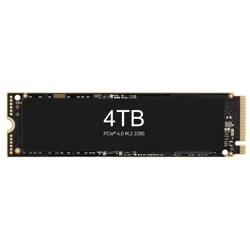 Here’s the performance king among PC storage types. NVMe drives (Non-Volatile Memory Express) offer the ultimate speedy storage for your PC.
NVMe drives connect directly to your motherboard through the PCIe (Peripheral Component Interconnect Express) interface.
This interface is much faster than the older SSDs that connect to the motherboard’s SATA ports.
For this reason, you can expect blazing-fast read and write speeds, making everything from booting up your computer to loading large applications seem instantaneous!
NVMe drives are particularly efficient at handling large files due to their high read and write speeds.
Another device that uses NVMe storage is today’s gaming consoles, such as the Sony PlayStation (PS5) and Microsoft Xbox. Quick access to game data is crucial when playing any game optimized to take advantage of the latest graphics on modern gaming consoles.
While NVMe drives can cost more than all other drive types, the performance benefits are hard to ignore, especially for gamers or content creators.
As with SSDs, the same pros and cons apply. However, an additional “Pro” is that most modern motherboards include one or more M.2 slots for installing these drives.
External USB Storage Types
 When it comes to external USB storage options, USB-connected drives are the most popular!USB storage devices come in many sizes and provide an easy way to back up or move files between devices. External storage options can include both SSDs and HDDs, each with its own advantages.
Plus, USB is plug-and-play, allowing anyone to quickly connect to almost any PC without needing to set anything up. Just plug in the drive and transfer your files!
External HDDs (Hard Drives):
 These are like a trusty backpack that holds a lot of stuff and can serve as an affordable, portable storage option. External HHDs offer the largest capacities and come in a wide range of sizes. Some of these drives are small enough to slip into your pocket.
Others can be as large as a PC tower case holding multiple hard drives.
External HDD storage options are perfect for storing all your personal and entertainment media or for backing up all your data files.
External SSDs (Solid State Drives):
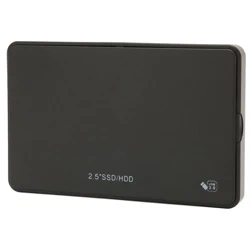 Think of external SSDs as the sleek, modern cousin of external HDDs. Like the SSDs you install inside your PC, these also use flash memory to store data. These external drives have no moving parts, making them faster, quieter, and more durable. Plus, external SSDs can retrieve data quickly because they don’t have any moving parts that slow down read/write speeds.
And, like their external HDD counterparts, most are internal PC drives installed in an enclosure with a USB interface.
If you crack one open or “shuck one”, as enthusiasts call it, you’d likely find a regular internal storage device inside.
Now, there can be advantages and pitfalls to doing this. Therefore, I don’t recommend you do this for several reasons, but the main one is that it will likely void your warranty.
USB Sticks (Flash Drives):
 USB sticks, thumb drives or flash drives. However you refer to them, they are the ultimate portable file storage devices. They have replaced floppy disks and CDs/DVDs when sharing files. Many manufacturers offer storage capacities of up to 2TB, with one offering up to 4TB. Also, they can be pretty expensive per gigabyte.
These flash drives are very small and lightweight, and they easily fit in your pocket or on a keychain.
USB sticks can also be used to boot an operating system for troubleshooting or installation purposes.
You can still find some with storage sizes as small as 1GB. These are often sold in bulk and used to distribute product information and marketing materials.
Back when I used to “Toe the corporate line” as a product manager, I would attend half a dozen trade shows every year. By the end of the day, I would have buckets of these low-capacity USB flash drives filled with everything from product specs to marketing presentations.
Now that I think of it, I also use one to hold my car playlist. Most newer cars will have a USB port in the glove box or the center console for this very purpose.
Tip: If you find an USB flash drives on sites like eBay or Amazon that claim to hold 16TB or 32TB, etc., these are scams. They are usually cheap low capacity drives programmed to report fake storage capacity when plugged into your PC. If you try to copy large amounts of data to these, they will fail to complete the copy.
How Does External Storage Connect to My PC?
Connecting external storage devices to your PC is pretty straightforward.
USB is the most common connection type, which ensures compatibility with most computers.
Alternatively, you might find a few external drives or enclosures that still support eSATA (External Serial Advanced Technology Attachment). Whew, that was a mouthful!
However, the latest USB versions offer speeds comparable to eSATA and are more widely adopted.
When considering external storage, the choice between SSDs and HDDs depends on factors such as speed, cost, and durability.
You’ll also find external storage devices that support Thunderbolt connections. This connection standard offers very high transfer speeds and supports a wide variety of devices.
You’ll even find monitors that support Thunderbolt directly or via a DP (DisplayPort) adapter.
Now, let’s discuss the different types of USB connectors, then briefly cover the NAS (Network Attached Storage) option.
Understanding Different USB Connection Types
Knowing the different USB connectors will help you choose which type best meets your needs when selecting external storage devices.
Here are the USB connection options to look for:
 USB Type A: This is the classic rectangular connector that most of us are familiar with. It’s great for general purposes and works with almost any device.
It’s the original and provides a solid connection and decent transfer speeds from 1.5 to 480 Mbps, depending on the USB standard the connected device supports.
 USB Type B: This square-shaped connector is usually found on larger devices, such as printers, external hard drives, and specialty peripherals.
I always referred to this type of USB cable as a “Printer Cable” since this is the most common connection type for personal printers.
Also, USB-B supports transfer speeds from 1.5 to 480 Mbps.
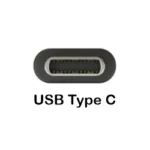 USB Type-C: Unlike previous versions, this connector is reversible so that you can plug it in either way.
It also supports significantly faster data transfer speeds up to 10 Gbps, depending on the USB standard supported by the connected device.
USB-C also supports power delivery, video output, and data transfer through a single cable.
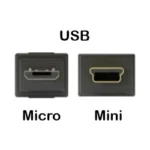 Micro and Mini-USB: These smaller connectors are commonly used for charging and data transfer on many portable devices, such as smartphones, tablets, and some cameras.
Their popular slim design makes them a perfect fit for these smaller devices. While not as sleek or versatile as USB-C, Micro and Mini-USB were popular for many years.
However, newer devices are shifting towards USB-C.
An SSD and a hard drive can benefit from faster USB connection types, enhancing their performance and data transfer speeds.
Here is a comparison chart of the USB A, B, and C connection standards and the speeds they support.
| USB Standard | Transfer Speed | Connector Types |
|---|---|---|
| USB 1.0 | 1.5 Mbps | Type A, Type B |
| USB 1.1 | 12 Mbps | Type A, Type B |
| USB 2.0 | 12 Mbps | Type A, Type B |
| USB 3.0 (SuperSpeed) | 5 Gbps | Type A, Type B, Type C |
| USB 3.1 Gen 1 | 5 Gbps | Type A, Type B, Type C |
| USB 3.1 Gen 2 | 10 Gbps | Type A, Type B, Type C |
| USB 3.2 Gen 1x2 | 10 Gbps | Type C |
| USB 3.2 Gen 2x2 | 20 Gbps | Type C |
| USB 4 | Up to 40 Gbps | Type C |
| USB 4 V2 | Up to 80 Gbps | Type C |
If you haven’t noticed already, USB standards are a bit of a mess and a little confusing at first glance!
As you can see, the different USB Standards and Transfer Speeds are supported across the multiple Connector Types.
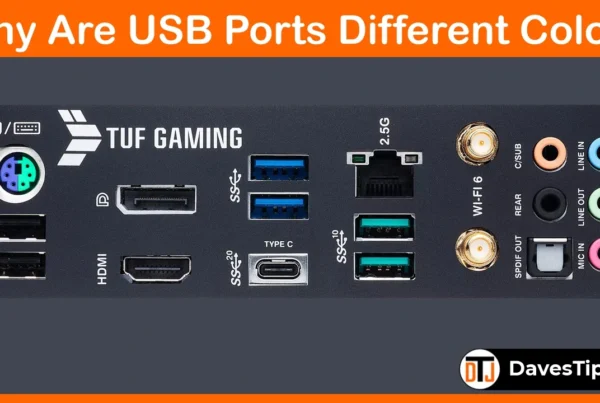
Also, “Type A” and “Type B” connectors with blue inserts support USB 3.0 standards (5 Gbps), and those with green inserts support USB 3.1 standards (10 Gbps)
While these are commonly used colors, they are not an official standard, and some manufacturers may use different colors; always check the manual.
Okay, I admit that my explanation of USB is far from comprehensive, but I just wanted to cover the most common USB options you’re likely to come across.
Just look at it this way: if your external storage device supports USB 3.0 and has a “Type A” connector on the PC side, plug it into the blue connector. If it supports USB 3.1, plug it into a Green connector, or whichever connector the motherboard manual recommends for that USB standard.
Also, many high-end motherboards now label these ports 5G to 10G because there is now a greater variety of USB performance options.
The computer’s USB port or the connected device determines the maximum speed. So, always verify you’re using the fastest USB port your USB drives support.
NAS (Network Attached Storage)
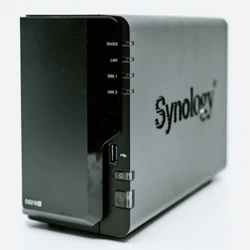 USB-connected external storage devices are most popular due to their ease of use and connectivity options. However, consider installing a NAS (Network Attached Storage) device if your needs go beyond basic storage and you’re looking for the best performance and some data protection. They’re not just for data centers.
A NAS device is a more permanent, non-portable option for storing all your data. NAS devices often use hard disk drives (HDDs) for their large storage capacities and reliability. However, I use an Asustor that supports HDD and SSD (four of each)
Think of it as your personal cloud storage connected to your home network.
When a NAS device is connected to your network, every computer on your home network can access, read, and store files on it, regardless of the operating systems you use. Windows and Mac users are actually getting along. 🙂
With a NAS, you can do much more. In addition to fast network access, you can configure a NAS to be accessible over the Internet.
Let’s say you do something I haven’t done for decades. You go to work in an office each day. It might be handy to access your files on your home NAS.
Most high-end NAS devices support remote access. However, be sure you understand how to configure these settings securely.
Hmm, maybe I’ll write about NAS security in a future article.
Regarding PC storage types, most NAS devices offer features such as automatic backups and file syncing, making it easier than ever to keep your data safe and organized.
What to Consider When Choosing PC Storage
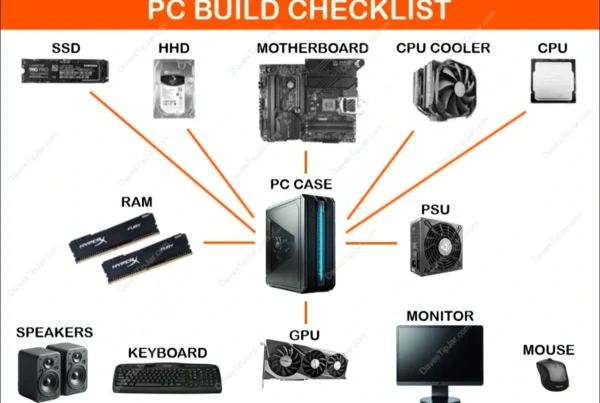
Whether you’re buying a pre-built PC or building one, choosing the right type of PC storage is part of the PC planning process.
Before choosing a storage drive for your PC, consider how much storage you need. Do you have just a few important work files, or do you need lots of space for videos, photos, etc.?
If speed matters most, consider a fast Solid-State Drive (SSD) as your primary boot drive and maybe a more affordable HDD as a secondary storage drive. When choosing storage, consider the benefits of both HDDs and SSDs in terms of cost, speed, and capacity.
If you also need an external storage drive, consider one that supports a fast USB 3.x connection type.
For external drive portability, choose a lightweight and compact model that’s easy to handle and doesn’t require a separate power supply. But, if you have a spot on your desk all picked out for it, consider a larger multi-disk device such as a NAS (Network Attached Storage) unit.
For external drives, make sure your PC has USB support. You may be saying to yourself (of course, all PCs support USB), but I’ll never assume that someone out there is still using a PC from the late 1990s. Although most modern-day computers likely will.
Finally, don’t overlook security features. Does the external drive offer encryption or other features to help keep your data safe?
It may seem like a lot to consider, but if you take a little time to understand the differences, you’ll find the best storage solution to meet your needs.
Common Questions Our Readers Ask
If I buy a PCIe 5.0 NVMe drive, will it work on my older PCIe 4.0 motherboard?
Yes. NVMe drives are backward and forward-compatible. However, the drive will be limited by the slot’s speed. If you put a “Gen 5” drive (capable of 14,000 MB/s) into a “Gen 4” slot, it will cap out around 7,500 MB/s. It’s a great way to “future-proof” your storage, but you won’t see the peak performance until you upgrade your motherboard.
Can I use an SSD for “cold storage” (unplugged in a drawer) for several years?
It’s not recommended. Unlike HDDs, which store data magnetically on physical platters, SSDs store data as electrical charges in cells. Over long periods (usually 1–2 years) without power, those charges can “leak,” leading to data corruption or “bit rot.” For a backup you plan to ignore for 5 years, a high-quality HDD is actually the safer, more stable choice.
Will gaming off an external SSD be as fast as an internal one?
Not quite. Even if the external SSD is very fast, the USB interface adds “latency” (a tiny delay) that internal PCIe connections don’t have. While loading screens might feel similar, games that use “DirectStorage” to stream textures instantly from the drive to the GPU perform much better on an internal NVMe. If you use an external drive for games, try to use a USB 3.2 Gen 2×2 or USB4 port for the best results.
Do I need a special heatsink for the newer, faster NVMe drives?
Often, yes. The latest Gen 5 NVMe drives generate significant heat because they move data so fast. Without a heatsink, the drive will “thermal throttle,” meaning it intentionally slows itself down to avoid melting. Most high-end 2026 motherboards come with built-in metal “shields” for this, but if yours doesn’t, you should buy a drive that includes its own heatsink.
Can I boot my entire Windows or Linux OS from a NAS?
Technically, “Yes” but it’s complicated. While you can set up “Network Boot” (PXE), it is significantly slower than an internal drive because it is limited by your home network speed (usually 1 Gbps or 2.5 Gbps). Most users find it much more effective to keep the Operating System on a small internal SSD and use the NAS only for large files, such as movies, project assets, and backups.
Final Thoughts on PC Storage Types
With all the different types of PC storage, it isn’t a one-size-fits-all solution. From USB Flash Drives to NAS Devices, each data storage option targets a specific purpose.
Do you need more storage space? Or maybe you need your PC to boot up faster. While most storage options will work, knowing what to look for will help you choose the best solution.
All modern-day laptops and desktop computers include at least one USB connection. Just make sure your PC is compatible with the storage type you choose so you get the best performance.
PC tech changes quickly, and what’s considered fast today will be slow tomorrow. I’ve been into PC tech since the beginning, when PCs were just a hobbyist tool.
Back then, I could never have imagined what they would be like today!