Yes, there are several ways to improve startup and performance to make your computer boot and run faster.
We’ve all been there—sitting patiently (or not so patiently) while our PC takes its sweet time booting up. So, if you’re wondering how to make your computer start up faster, here’s how.
Let’s review how to speed up your Windows PC’s startup time. Trust me, it’s easier than you might think, and you will thank yourself for making some of the changes we cover below.
A slow-starting PC can be incredibly frustrating, especially when you have a busy day ahead, or your gaming party is waiting for you to connect.
I realize that not everyone uses Windows, but it is the most used operating system today. Therefore, if you’re a Mac user or use Linux as your daily driver OS, I’m sorry, but this article doesn’t cover those.
Key Takeaways
A slow PC startup can be caused by issues such as malware, outdated drivers, and unnecessary startup programs.
Clearing disk space, disabling unwanted startup apps, and running regular updates can significantly boost startup performance.
Consider upgrading from an HDD to an SSD for faster boot times and improved overall system speed.
Enabling fast startup features and running disk cleanup can further enhance your computer’s startup speed.
Regularly rebooting your PC can free up resources and solve minor performance issues.
Why Is My Computer Running So Slow?
There are several reasons your PC might run slowly. Here are some of the most common causes that we’ll cover in this article:
System Settings and Configuration
Optimizing your computer settings is one of the easiest ways to boost performance and make your computer boot and run faster. A slow computer is frustrating, especially when you’re working on something you need done quickly.
Here are some key settings to check:
Disk Space: Make sure you have enough available disk space. Low available disk space can slow down your computer, especially when using an older mechanical hard drive (HDD).
Temporary Files: Temporary files can accumulate over time and take up valuable disk space that can affect performance if your storage drive is almost full. Tools like Disk Cleanup help to regularly remove these files.
Operating System: Keeping your operating system up to date is important for performance and security. Regular updates will fix bugs and improve compatibility.
Startup Apps: Disabling these unnecessary startup apps will significantly improve boot times. We mention this several times throughout this article as one of the quickest and easiest ways to improve overall performance.
Quick Note: Your computer slows down as you install applications and create files over time. Performing file maintenance (Disk Cleanup) and checking Startup Applications regularly can help.
The type of Hard Drive: HDD vs. SSD
One of the biggest reasons is the type of hard drive you’re using. Older traditional Hard Disk Drives (HDDs) rely on spinning disks and can be pretty slow.
Since the late 2000s, these have been rarely used as the primary boot drive in newer PCs. However, if you bought an older used PC, it might still have an old HDD as the boot drive.
Additionally, some budget-minded computers or refurbished systems might still include an older mechanical hard disk drive (HDD) as the boot drive to reduce costs. However, these are also increasing in price along with today’s newer Solid State Drives (SSDs).
As I just mentioned, today’s Solid State Drives (SSDs) use flash memory, enabling much faster data access. Simply put, SSDs can dramatically reduce boot times and improve overall PC performance, and they can be the single most effective upgrade you can do to an older computer.
Outdated Drivers, Software and Startup Programs
If you’re using outdated drivers or software, or have too many startup programs running, all of these can slow down your PC during and after startup.
Many software applications will set a service or utility to load at system startup, making your PC sluggish right from the start. This is why your PC slows down over time as you add new software.
From Windows Task Manager, you can disable any unnecessary startup programs. We cover this later in the article.
A Virus or Malware Infection
A virus or malware infection is another issue that can cause your PC to start slowly.
These harmful programs often run in the background, consuming memory resources that can greatly affect performance.
Some malware is designed to launch immediately on startup, further slowing your PC’s boot time.
Malware can also modify system settings, disable critical startup processes, or inject additional harmful code, all of which can contribute to the slowdown.
Keeping your internet security software up to date and regularly scanning your PC can help prevent these malicious programs from affecting your computer’s performance.
Does Rebooting Your Computer Fix a Slow PC
Yes, it can help by clearing out any processes left over from opening and closing web browsers and software. It may not be noticeable, but it does help.
The old saying is that when you’re having PC problems, just hit (Ctrl > Alt > Del). This is just a Geek’s way of saying, “Reboot your PC.”
Personally, I let my computer go to sleep rather than shut it down at the end of the day. If you do this too, you should also restart your computer occasionally. I restart mine every Monday morning to clear out all the temporary files and background processes.
Quick Tip: Rebooting your computer regularly clears temporary files, frees up memory allocated to programs, and refreshes system resources.
Disable Unnecessary Startup Programs to Improve Performance
A startup program is an application that automatically runs when you turn on your computer.
Installing new software may set one or more of these startup apps to run when you boot up your PC. Most of these are really unnecessary!
In my experience, almost all of these unnecessary apps can be safely disabled from loading at startup in Windows. Disabling these will improve your boot time and overall computer performance.
How to Disable Startup Programs in Windows
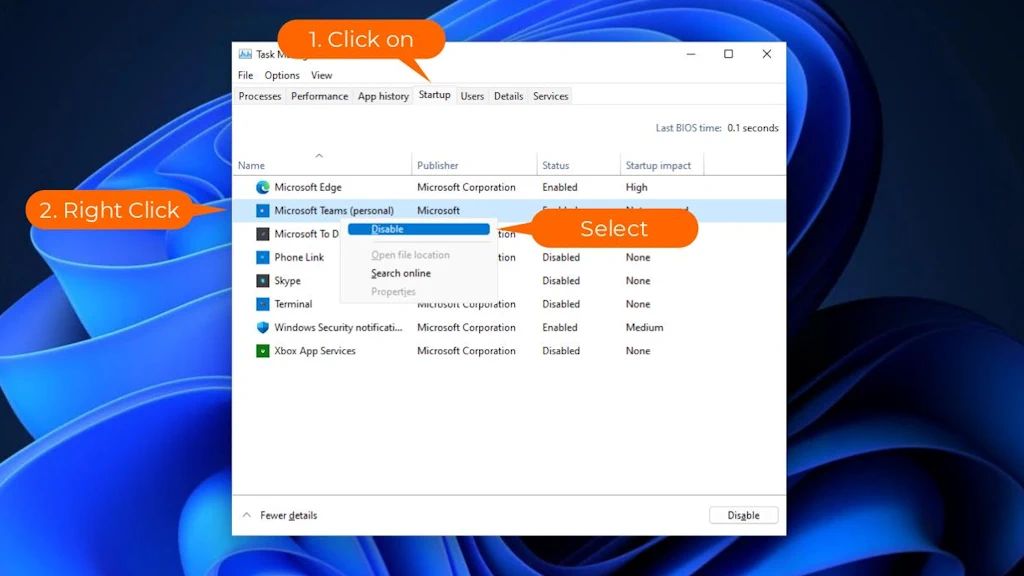
Press and hold Ctrl + Shift + Esc to open the Task Manager.
Select “Yes” at the User Control Prompt, then click the Startup tab.
Review the list of all the programs. Look for those you don’t need to launch at startup.
Right-click the app name, then select Disable.
However, if you do disable one and something stops working as before, just go back and re-enable it.
Quick Tip: Do not disable startup items such as Malware/Virus protections or printer/scanner utilities, as these are typically required for proper operation.
Enabling Fast Startup
Enabling fast startup is a handy Windows feature that can significantly reduce your computer’s boot time. It was first introduced in Windows 8 and is still available in Windows 11.
This feature saves the system state to a file on disk, allowing your computer to boot up more quickly.
How to Enable Fast Startup
Open the Start menu, type Control Panel, and press Enter.
In the top-right corner, set the View by option to Large icons or Small icons.
Click on Power Options.
On the left-hand sidebar, click Choose what the power buttons do.
Click the link at the top labeled “Change settings that are currently unavailable” (this requires Administrator privileges).
Under the Shutdown settings section at the bottom, check the box for Turn on fast startup (recommended).
Click Save changes at the bottom of the window.
By enabling fast startup, you can reduce the time it takes you to load these files, making your computer ready to use much faster.
Quick Note: If you do not see the “Turn on fast startup” option, it’s because the hibernate feature is disabled in Windows.
Why You Should Apply the Latest Windows Update
Keeping Windows updated is important for several reasons beyond performance.
Here are a few reasons why keeping Windows updated is so important
Security: One of the main reasons to keep your Windows PC updated is for enhanced security. With each update, security vulnerabilities are patched that hackers or cybercriminals could exploit. By not updating, you leave your system vulnerable to malware and viruses that can compromise your personal information and slow down your PC. Malicious software that runs on startup can significantly increase your computer’s boot-up time.
Bug fixes: Updates often include bug fixes for known issues. These bugs may cause performance issues or crashes, so keeping Windows up to date will help prevent these issues and keep your computer running at its best.
Compatibility: Software and hardware manufacturers release new products that may require updates to work correctly. If you choose not to update Windows, you may experience compatibility issues when using new devices or software.
New features: Windows updates often include new features that can improve the operating system’s functionality and user experience. By not updating, you miss out on these new features and the benefits they offer.
Quick Tip: Microsoft’s recent track record with updates has been less than stellar! One option is to “Pause updates” which you can do for up to 5 weeks.
How to manually check for Windows updates
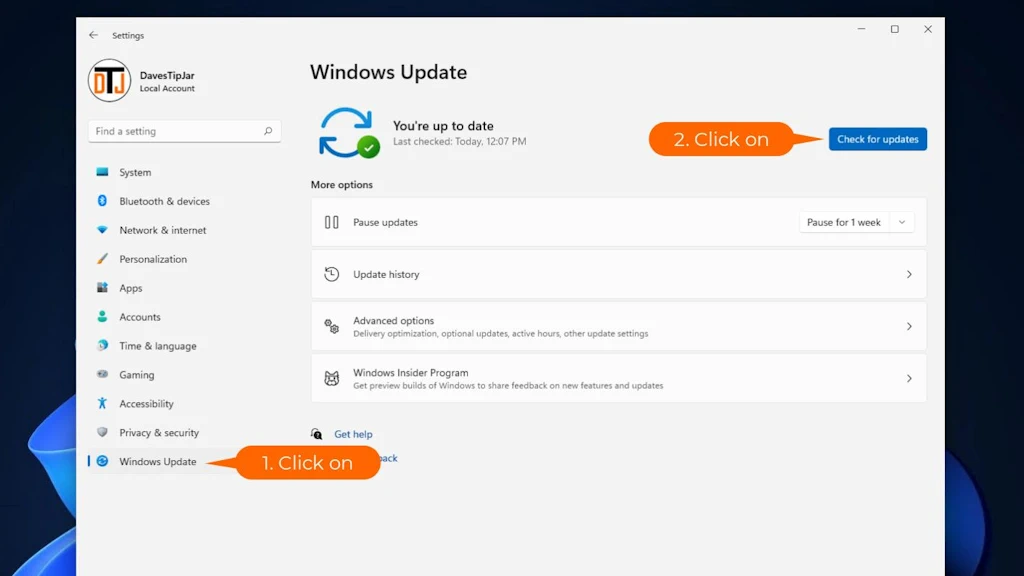
Press and hold “WinKey + I” to open Windows “Settings”
Click on “Windows Update” (“Update & Security” for Windows 10)
Select “Check for updates” to apply the latest updates if found
How to Run Disk Cleanup
A cluttered hard drive can drastically affect performance. Using disk cleanup tools can help remove unnecessary files, free up space, and improve your system’s performance.
How to Use Built-in Disk Cleanup Tools in Windows
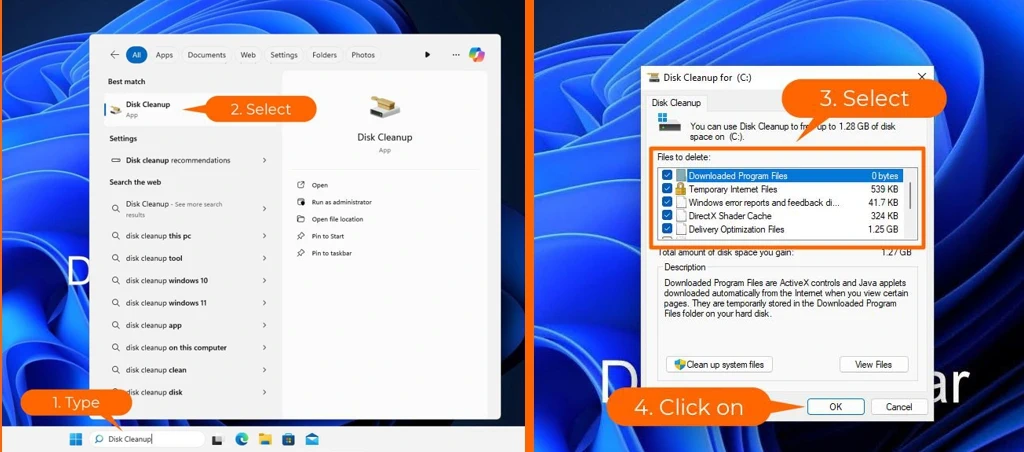
Type “Disk Cleanup” in the search bar
Select to run the utility
Choose the drive you want to clean (if two or more drives are installed)
Select the files to delete, including unnecessary system files, and click “OK.”
Run Windows Defrag to Optimize Files (Only for older HDDs)
When you save files to an older mechanical hard disk drive (HDD), they can become fragmented as they are written to available free space across the platters. This is where the disk defragmenter comes in.
This fragmentation slows things down since the HDD has to work harder to find and read all these fragments the next time you open a file.
Defragmenting rearranges these data fragments. It consolidates them all in one place, allowing you to access them faster the next time you open a file.
The defrag utility is only for traditional hard drives (HDDs). Newer solid-state drives (SSDs) have no moving parts, so defragmentation isn’t necessary. Plus, doing so can shorten their lifespan by performing unnecessary read/write cycles.
How to Defrag a Hard Drive in Windows
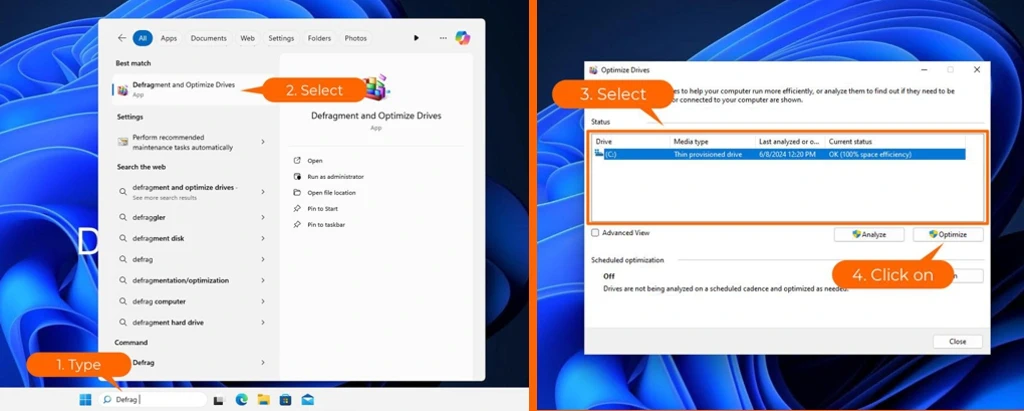
Type “Defrag” in the search bar
Select to run the utility
Choose the drive you want to optimize (Typically Drive C:)
Select “Optimize.”
Quick Tip: While SSDs do not need defragmentation, Windows does support a “TRIM” function that offers slight performance improvements.
How to Fix a Slow-Starting PC by Upgrading the Hardware
Upgrading your computer’s hardware can significantly improve PC startup times in several ways.
While you could replace almost every component in your PC to make it better and faster, we’re talking about what you can easily do with practically any system to make it boot faster and run better than new.
Here are the best computer upgrade options for the greatest performance gains.
Upgrade Your Old Hard Drive (HDD) to a Solid-State Drive (SSD)
Upgrading your PC’s storage from a Hard Disk Drive (HDD) to a solid-state drive (SSD) can significantly reduce PC boot times and overall performance.
Here are the most common types of SSD Drives:
SATA SSD The original SATA SSDs can run 4-5 times faster than a standard mechanical HDD when working with large files. They are the same size as 2.5-inch traditional HDDs typically found in laptops, making it worthwhile to upgrade your computer to an SSD.
NVMe SSD High-performance NVMe SSDs are the latest type of Solid-State Drives and can be up to “100 times” faster than a standard mechanical hard drive, depending on the PCIe generation supported. This improved performance is the ultimate upgrade for your PC.
Upgrading to a Solid State Drive SSD will provide a significant performance boost and is a worthwhile investment for long-term use. This upgrade alone can extend the usefulness of an older PC by many years.
Upgrade Your System RAM Memory
If you have an older computer with room to expand the system memory (RAM), doing so will also enhance your PC’s boot times. Plus, it can improve overall performance when running applications.
Most PC manufacturers specify the type of Random Access Memory (RAM) your system supports and often offer upgrade guides.
If you have a laptop/notebook computer, many include an easy-to-access panel on the bottom that makes memory upgrades easy.
However, if there is no access panel, the case must be opened. If this is your situation and you’re not comfortable doing this yourself, I recommend having it done by a computer technician or a knowledgeable friend (we all have at least “one” of these friends!)
Final Thoughts
I’ll be the first to admit that I have no patience for waiting on a slow computer to boot or even working on one once it’s finally started.
Back when I used to “toe the corporate line,” I would first go to my office, turn on my computer, and then head to the break room for a cup of coffee. When the company provides the PC, you get what they give you, and hopefully they didn’t cheap out.
Making your computer start faster doesn’t have to be complicated. Simple fixes, such as rebooting and disabling unnecessary startup programs, may be enough.
If you’re using an older version of Windows, consider upgrading to Windows 11, as it’s optimized for faster boot times and improved overall performance.
If your system is really old, more drastic measures, such as upgrading to an SSD, will make a significant difference.
Life’s too short to spend it watching a spinning Windows loading icon!
Questions I Am Often Asked
Is it safe to disable any program in the “Startup Apps” list?
While most apps in the list (like Spotify, Steam, or Cortana) are safe to disable, you should be cautious with items labeled as security software, audio drivers (like Realtek), or trackpad utilities.
If you aren’t sure what a program does, it is best to right-click it in Task Manager and select “Search online” before disabling it to make sure you aren’t turning off a feature you use daily.
If I upgrade to an SSD, do I have to reinstall Windows from scratch?
Not necessarily. While a “clean install” often provides the best performance, many SSDs come with cloning software.
This allows you to create an exact copy of your current HDD, including your files, settings, and programs, to move directly to the new SSD so you can pick up right where you left off.
Why shouldn’t I defrag my SSD if it’s good for my HDD?
Traditional Hard Drives (HDDs) are physical spinning disks; defragging helps by placing file fragments next to each other so the drive’s “read head” doesn’t have to move as much.
SSDs have no moving parts and can access any piece of data instantly. Defragging an SSD is unnecessary and actually causes “wear and tear” by performing constant write cycles, which can shorten the drive’s lifespan.
Does “Fast Startup” have any downsides?
While Fast Startup is great for speed, it works by saving a “snapshot” of your system to the hard drive rather than fully closing everything. This means that if you encounter a system glitch, a standard “Shut Down” might not actually clear the error.
If your computer is acting buggy, it is always better to use the Restart command, which bypasses Fast Startup and fully refreshes the system.
Hi! I'm Dave. I retired from corporate life over ten (10) years ago and now spend my days writing and sharing "Tips" on any topic I have experience with. That experience spans over 30 years in IT Services to Website Planning and Design, including content optimization and analytics. Check out my "Who is DTJ" page to learn more about me.
Disclosure: As an Amazon Associate, I earn from qualifying purchases. These links, as well as others on this page, are affiliate links. If you purchase an item or service after following one of these links, I may earn a small commission at no additional cost to you. You will find our full affiliate disclosure in our privacy policy
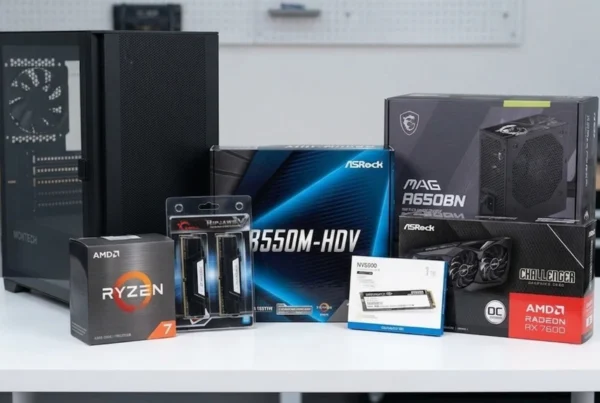
Yes! Even with today's high Memory and Storage costs, it's still possible to build a decent Gaming PC on a budget by focusing on 1080p gaming. Building a high-end gaming PC today using the latest tech (i.e., DDR5 RAM, PCIe…
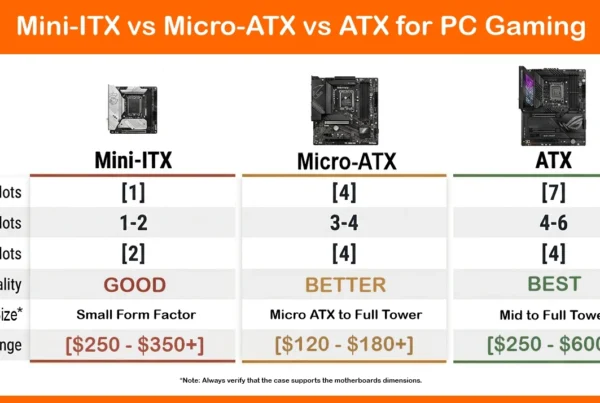
Which Motherboard is Best for Gaming: Mini-ITX, Micro-ATX or ATX
Overall, an ATX motherboard is the best choice for a gaming PC. However, the best motherboard depends on your gaming needs and budget. ATX offers the most PCIe slots, M.2 storage, and VRM headroom for high-TDP CPUs like the Intel…
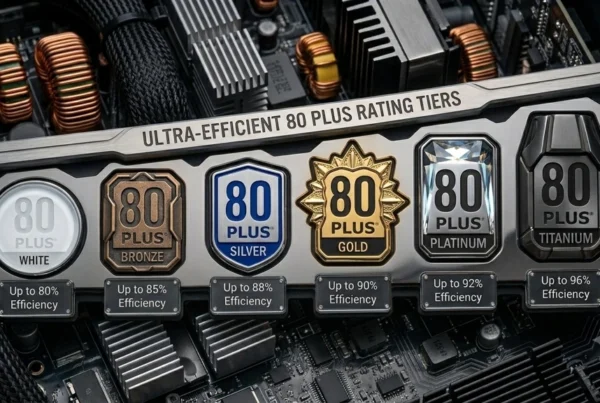
Choose a PC power supply based on your PC build's power draw, efficiency rating, and budget. For most mid-range builds, an 80 Plus Gold-certified PSU between 650W and 850W delivers the best balance of performance, reliability, and value. Building the…