
 If you’ve been looking for a free anti-malware scanner, you’ve probably stumbled across the Malwarebytes Free version.
Let me take you through my experience with the good, the bad, and everything in between.
First, let’s talk about the good stuff. Malwarebytes offers a free version, and for some, free is good! It’s also incredibly easy to use, making it an excellent choice for those who may not be tech-savvy.
I’ve been using Malwarebytes for decades. It does a great job of sniffing out and removing malware from your computer.
Key Takeaways: Malwarebytes Free Version
What the Free version of Malwarebytes offers
- Pros: Easy to use, effective malware removal that can remove threats efficiently
- Cons: No real-time protection, limited features compared to the Malwarebytes Premium version
- Best for: Occasional manual malware scans as a backup to your primary security suite
Considerations when choosing a malware scanner
- Effectiveness: Ability to detect and remove malware
- Performance: Minimal impact on system resources
- Features: Real-time protection, identity theft protection, etc.
- Cost: Free or paid options
- Ease of use: Simple user interface
The Malwarebytes Free version is a solid option for basic malware protection. However, a paid subscription is recommended if you need a primary security suite.
What is Malwarebytes?
Malwarebytes is a well-known antivirus software that detects and removes a wide range of malware, including viruses, Trojans, spyware, adware, and ransomware.
It’s designed to protect your computer from various online threats with features like ad blocking, real-time protection and comprehensive virus scanning.
There are two versions, free and premium. While we’re mainly talking about the free version, which provides basic malware removal, the premium version offers additional features and support for more robust protection.
What are Malwarebytes Security Features?
Malwarebytes offers a robust set of security features to protect your device from a variety of online threats. Its virus protection capabilities are top-notch, effectively detecting and removing malware, viruses, and other malicious software.
The real-time protection features found in the premium version help identify and neutralize threats as they occur, providing a proactive defense against malware attacks.
Malwarebytes also provides malware removal, capable of eliminating even the most stubborn infections, including rootkits and advanced malware.
Lastly, web protection is another key feature that blocks online scams, infected sites, and malicious links to keep your browsing experience safe and secure.
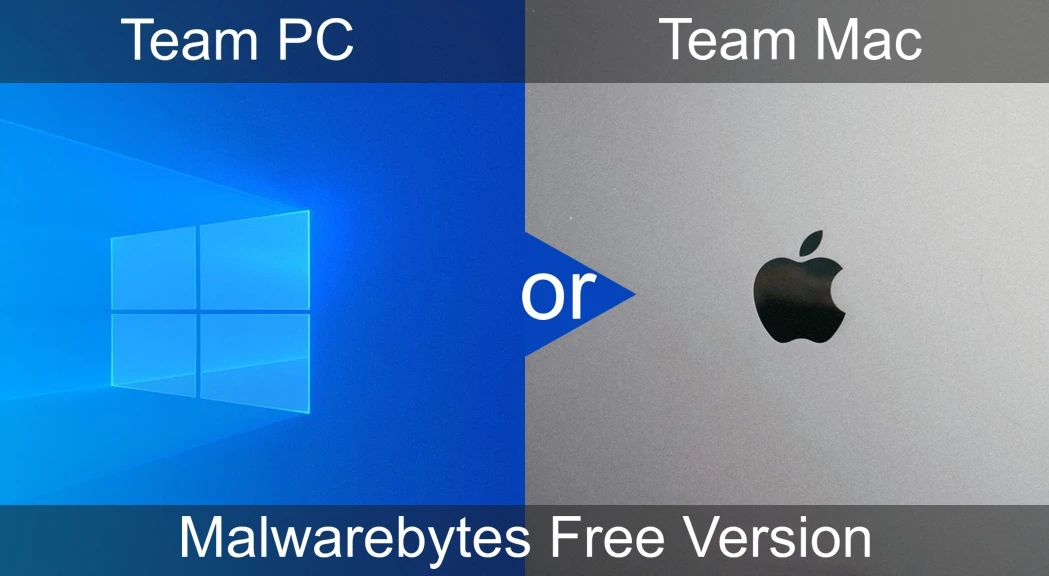 Team PC or Team Mac
I can hear it now: “But I’m a Mac user, and we don’t get infected with Malware or Viruses!”
That may have been true in the “before times,” but even though Macs may seem more secure, they can still be infected.
I’ve never been a MAC user, meaning I was never groomed in school to be technically raised by Apple.
This grooming is like what Chromebooks do with today’s kids. Talk about setting them up for PC failure! Okay, sidebar rant over! 🙂
If there’s profit in spreading malware, the bad folks will keep trying to infect your PC, Mac and other smart devices with their malicious software.
Malware Scanners Past and Present
Some of the first free, open-source antivirus and malware protection programs I used were ClamWin, Comodo AV, and Adware (later purchased by Malwarebytes).
ClamWin was a good tool, but it had some limitations, and the other two were just too demanding on my laptop’s resources back then.
Comodo Antivirus was a bit of a mixed bag. It provided good protection against many threats in the early 2000s, and there were regular updates to address emerging threats.
However, unlike ClamWin, I found Comodo a real PC resource hog. A malware scan would consume the CPU resources, meaning you couldn’t do anything while a scan was running.
Comodo still offers a free product today, but I’ve never used it. I can only hope they fixed the resource allocation issues.
Malwarebytes purchased Adware, and I regularly use it to scan for malware threats. I like that it’s a lightweight utility that doesn’t slow down my computer during a scan.
However, the Free and Premium versions of Malwarebytes are known for effectively blocking malware downloads. However, some competitive tests show room for improvement in this area.
Regarding functionality, Malwarebytes Free has all the basic features you’d expect from an anti-malware scanner.
You can configure it to scan your entire system or specific folders and files, quarantine suspicious items, and update regularly to stay current with the latest threats.
Previously, active malware and antivirus security would slow PC bootup times and make your computer feel sluggish. However, with today’s computing power, this is less of an issue unless you’re using an older, slower CPU.
Malwarebytes Free Version Limitations
While Malwarebytes Free is an excellent malware-scanning tool, it has limitations compared to the premium security features of Malwarebytes Premium.
The free version only lets you perform manual scans to remove malware that has already infected your computer.
Also, real-time protection is not available in the free version, and this is needed to prevent malware from infecting your system in the first place.
However, I like to do an occasional manual scan as a backup validation check alongside my everyday security suite, Norton 360.
Malwarebytes offers a 14-day trial. So, if you like it and want to use it as your primary security suite, Malwarebytes Premium provides affordable subscriptions for personal and business use.
Malwarebytes Free Version is Good: Malwarebytes Premium is Better
Although free options are available, investing in good antivirus and anti-malware software is worth considering to safeguard your devices from cyber threats.
The cost and stress of dealing with a virus or malware infection will likely far outweigh the cost of purchasing a security suite subscription.
Also, keep in mind that developing these utilities costs money, and the free and trial versions are meant to let you “try before you buy.”
With that in mind, be prepared for occasional advertisements to pop up, enticing you to upgrade to the premium version. We all find pop-ups annoying, but it’s the price we pay for a “free,” right?
I’m sure almost everyone reading this subscribes to a streaming service like Netflix or Hulu. You have to pay more for the “commercial-free” experience with these services. It all comes at a price.
So, what do I use? I use Norton 360 on my primary business PC and the native Windows Security on my Gaming and Simulator PCs, with an occasional manual Malwarebytes scan using the free version.
However, I find the pop-ups and “Scare Marketing” Norton has been using since they were purchased by LifeLock extremely invasive, with no way to turn them off. So, I’ll likely switch back to Malwarebytes Premium after my subscription expires.
Malwarebytes Premium Features
While we’re focusing on the free version, it’s important to know that Malwarebytes Premium takes your security to the next level with a suite of advanced features designed to keep your device safe from online threats.
One of the standout features is real-time protection, which continuously monitors your system for malware, viruses, and other online threats, stopping them before they can cause harm. Ransomware protection is another critical feature, safeguarding your files from being locked and held for ransom.
Additionally, the Browser Guard extension blocks ads, prevents third-party trackers and stops potentially unwanted programs (PUPs) from infecting your device.
Having ongoing protection against emerging threats helps keep your computer protected at all times.
 Download and Install Malwarebytes
There are several versions for both Home and Business. Here, we will focus on the free personal-device-protection versions. Visit Malwarebytes Free Downloads and choose from several platforms, such as Windows, Mac, Android, iPhone, and Chromebook.
After downloading the installation file, open it to start the installation process to make sure your device is protected from malware downloads right from the start.
Follow these steps, and at one point you’ll be asked to choose between the premium trial and the free version.
If you’re unsure, you can start with the free version and upgrade to the premium trial later to experience the additional features.
Also, registering the app is optional, so it’s up to you. Personally, I never provide my info, especially my email (I get enough spam!)
Once you finish the installation, the program will check for updates. Be patient, as this can take longer than you would expect.
 Malwarebytes Home Screen
On the home screen, you’ll see several system status windows for security and online privacy, as well as your PC’s current status.
Along the top, you’ll see two buttons:
- Activate subscription: This will let you sign in to your subscription account or enter a license key or MB Code.
- Buy now: This takes you to their subscription services page, where you can choose from three subscription plans based on your needs.
The left side toolbar includes:
- Dashboard: This is the default home screen when you open the application
- Identity Protection: This new feature lets you know if your personal information is available on the Dark Web. You can also subscribe to identity protection through dark web monitoring.
- Settings: This is where you configure Malwarebytes to your needs. Most of these settings require an active subscription.
- Claim a 14-day free trial: If you’re using Malwarebytes Free, this button will let you try the premium services free for 14 days.
As you can see, the user interface is easy to understand.
Malwarebytes Performance
This application is almost immeasurable in terms of system resource demand.
Also, in the current version, you can define custom performance settings.
- Prioritize scans (faster scans)
- Prioritize the system (less performance impact)
The default prioritizes scans, but even at this setting, it barely uses any resources so that either setting will work.
Using the default “Prioritize scans” setting, I ran a scan on my primary boot drive (C:\), which has 750 GB of stored data. It took about 1:50 minutes to scan 248,742 files and used only about 150 MB of RAM, with just under 2 percent CPU utilization.
This app’s resource usage is far lower than that of the other free apps we mentioned earlier, which used all the system resources they could find.
Performance results will vary depending on your system specifications, such as your CPU and storage drive performance.
However, since the app sips your system resources, you can keep working while it runs in the background.
 Malwarebytes Scan Screen
During an active scan, you will see real-time feedback on progress, with each category checked off as it is completed.
You’ll also see a running Scan time, Items scanned, and Detections (if any) throughout the process.
You can remove items from your machine or keep them if they were found and quarantined under the default settings.
But why would I want to keep a quarantined file? Sometimes, even malware scanners can make mistakes.
If you’re like me and install third-party add-ons for your games, some of them may be flagged as undesirable programs (PUPs).
If you’re running crypto-mining software, you can count on most security software to identify it as malware or a virus.
When it comes to free tools, Malwarebytes works well and integrates with many other popular security suites, including Windows Security.
Other Popular Free Antivirus/Malware Scanners?
While the Malwarebytes Free version is part of my PC security toolkit, there are several other popular free antivirus/malware scanners that many people swear by.
Here are just a few of them:
- Avast Free Antivirus: Avast has long been popular for offering robust protection without slowing down your system. It provides real-time protection, a wide range of features, and a user-friendly interface.
- AVG Antivirus Free: AVG, now part of the Avast family, offers similar robust protection. AVG’s additional features, like email protection and safe web browsing, set it apart. These features make it a comprehensive tool for safeguarding your PC.
- Bitdefender Antivirus Free Edition: Bitdefender is known for its powerful, fast scanning capabilities. The free antivirus edition offers essential virus protection. This makes it ideal for anyone looking for a lightweight solution that won’t bog down their system.
- Microsoft Defender: If you’re running Windows, you already have access to Microsoft Defender, formerly known as Windows Defender. It’s pre-installed and provides decent protection with regular updates. It’s a great, no-cost option that integrates seamlessly with the Windows operating system.
While I have no recommendation for one free antivirus/malware solution over another, many user reviews can give you an idea of which brands are worth trying.
And while these alternatives are free to try, remember that whether to buy is up to you.
The best malware scanner is one that keeps you protected from malware infections and doesn’t interfere with your day-to-day computer use.
Choosing the Right Version
Consider your specific needs and circumstances when deciding between Malwarebytes’s free and premium versions.
If you’re at high risk of malware attacks, the premium version is a wise investment, offering real-time protection, ransomware protection, and Browser Guard for comprehensive security.
On the other hand, if you’re on a tight budget, the free version still provides solid virus protection and malware removal capabilities.
Your level of technical expertise is also a factor; the premium version offers additional support and features that can be particularly helpful if you’re not very tech-savvy.
Ultimately, the best choice depends on your requirements and the level of protection you need.
Frequently Asked Questions
Does the free version offer a portable “plug-and-play” option for infected PCs?
While the standard Malwarebytes Free version requires a full installation, many users look for a “portable” version that can be run from a USB drive on a computer that is already too infected to download or install software. Malwarebytes offers a separate, specialized tool called Malwarebytes Support Tool or AdwCleaner that can sometimes fill this gap. Still, the standard free app mentioned in the blog must be installed on the local drive to function.
If I use Malwarebytes Free as a secondary scanner, will it conflict with my primary antivirus?
One of the biggest concerns for users is “software collision,” in which two security programs compete for system resources. Since Malwarebytes Free does not include Real-Time Protection, it does not run in the background. This makes it naturally compatible with almost all major antivirus programs (like Windows Defender, Bitdefender, or McAfee) because it only “wakes up” when you manually tell it to run a scan.
Can I use the free version to scan external drives or USB sticks?
Yes, but it requires a manual step. By navigating to the “Custom Scan” section in the Scanner card, you can select specific drive letters, such as those for an external hard drive or a thumb drive. This is a common practice for users who want to verify that files from a friend or a secondary device are clean before transferring them to their main PC.
Does the mobile version for Android or iOS provide the same features as the PC version?
The mobile apps operate differently due to the nature of phone operating systems. On Android, the free version focuses on scanning apps for malicious code and auditing privacy permissions. On iOS, due to Apple’s “sandboxing” rules, the free app functions more as a web and call protector (blocking fraudulent sites and scam calls) than as a traditional file scanner, since apps cannot scan other apps on iPhones.
What happens to the “Premium” features after the 14-day trial expires?
If you opt into the trial during installation, the software will enjoy full “Premium” status (including real-time blocking) for 14 days. Once that period ends, the software does not stop working; it simply automatically downgrades to the Free version. You will lose the proactive blocking and scheduled scanning, but you retain the ability to open the app and run manual “clean-up” scans whenever you like.
Final Thoughts on Malwarebytes Free Version
The Malwarebytes Free version is a solid choice if you’re looking for an effective, no-cost option to tackle malware.
Just remember its limitations, like the lack of real-time protection and occasional ads, and you’ll be good to go.
However, investing in a paid security suite can provide added protection and peace of mind, so do your own research and choose a reputable company with a proven track record.
After all, prevention is always better than dealing with an infection after the fact! So, stay safe!



I’m going to try the free version. How often should I run a manual scan?
There’s no recommended frequency for running manual scans. You could do one daily while you’re away from your computer. Personally, I run one once a week or anytime my Norton Security alerts me that it blocked some sort of access attempt. (These alerts are usually from website ads being displayed that link to “questionable” websites.) I see these on Facebook and crypto websites once in a while.
Just FYI, if anyones needs firewall protection, Malwarebytes doesn’t include one.
Good Point! MalwareBytes is all about malware/virus protection. However, it works with the firewall included in Windows and MacOS. I have always found these to be more than adequate protection for a home computer. Also, many wireless routers include basic firewall protection. However, these are less configurable and are not a replacement for OS firewall services.
Maybe go into more depth on the other free versions you mentioned. A side by side comparison of features would have been helpful. Just a suggestion…
Good point! I’ve been sidetracked lately, but I do plan to write a supporting article for each of those similar to this one.