Don’t panic! Universal Serial Bus (USB) issues are common and often easy to resolve with straightforward troubleshooting. Whether the cause is a loose connection, outdated drivers, or power settings, this guide will help you troubleshoot your USB ports and get them working again.
We’ll look at options such as resetting all USB controllers in Device Manager and updating or reinstalling device drivers in Windows.
Key Takeaways on Fixing USB Ports Not Working
Most USB connection issues can be solved using the simple steps below. If not, you may need to find a professional repair shop to help troubleshoot these issues further.
-
- Understanding Common Causes: Knowing what can cause these issues is the first step
- Basic Troubleshooting: The quick first steps in solving issues
- Advanced Troubleshooting: The USB Save Power features and Driver settings under Device Manager
- Hardware Failure Options: Next steps if all other options fail to solve the issues
Common Causes of USB Port Issues
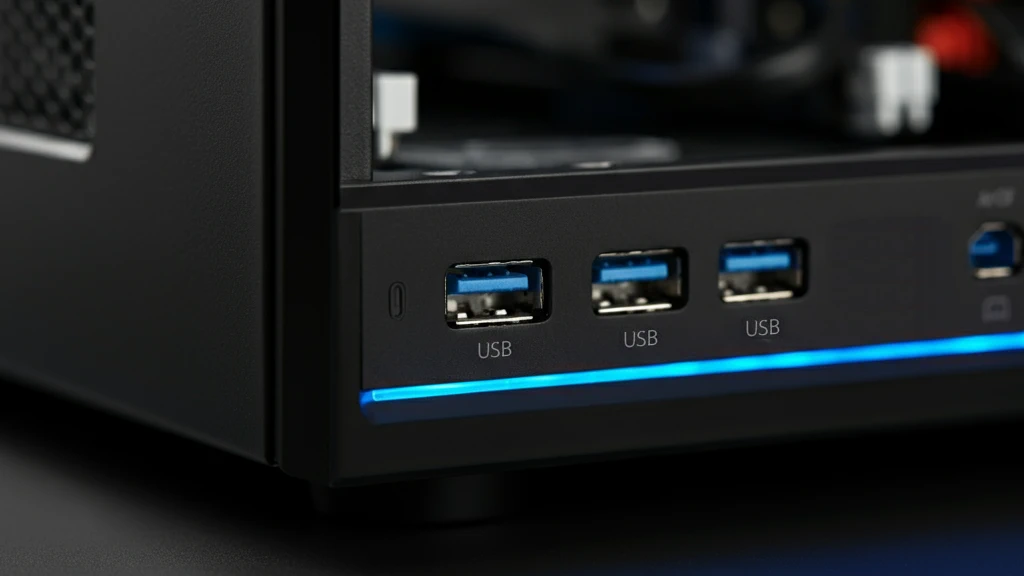
Here are some typical causes:
-
- Loose or improper connection: Sometimes, the USB device isn’t correctly plugged in
- Clogged ports: Dust or debris can interfere with connections
- Faulty cables or devices: The problem might be with the USB cable or the device itself
- Driver issues: Outdated or corrupt device drivers can prevent them from being detected
- Power management settings: Windows power-saving features sometimes create conflicts (This is common)
- USB controllers: Issues with USB controllers can prevent devices from being detected. Uninstalling and reinstalling them can help address device recognition issues.
- USB Root Hub: Power management settings can affect USB port functionality. Disabling Selective Suspend might restore functionality to unresponsive USB devices.
- Hardware failure: This is the worst-case scenario and will require professional repair (if practical)
Now, let’s look at some troubleshooting options!
Basic Troubleshooting Steps
The first step in resolving USB port issues is to cover the basics. Before we look at the USB controller under Device Manager, we’ll start with these quick checks, which often solve the problem immediately.
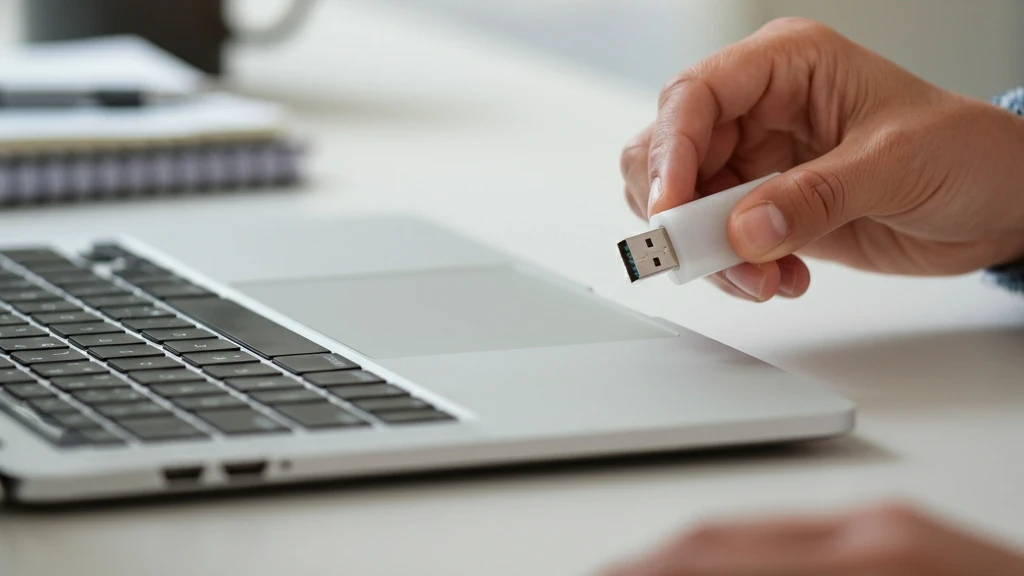
Try a Different USB Port
Unplug your device and connect it to another USB port on your computer. If it works on the new port, the original one may have a physical issue, such as damage or debris.
Inspect the USB Port
Take a close look at the faulty port. Shine a light into it to check for dust or dirt that might block the connection. If you find buildup, carefully clean it out using a toothpick or compressed air.
Be gentle to avoid damaging the port! Never use anything metal, such as a small screwdriver, that could damage the contacts.
Restart Your Computer
Sometimes, a simple reboot fixes everything. Temporary computer issues can cause USB problems, and restarting your PC clears them.
Test the Device and Cable
If you have one, plug the device into a different computer or replace the cable with another. If it doesn’t work on a different PC or with a new cable, the device or cable might be defective.
Disable USB Selective Suspend Settings
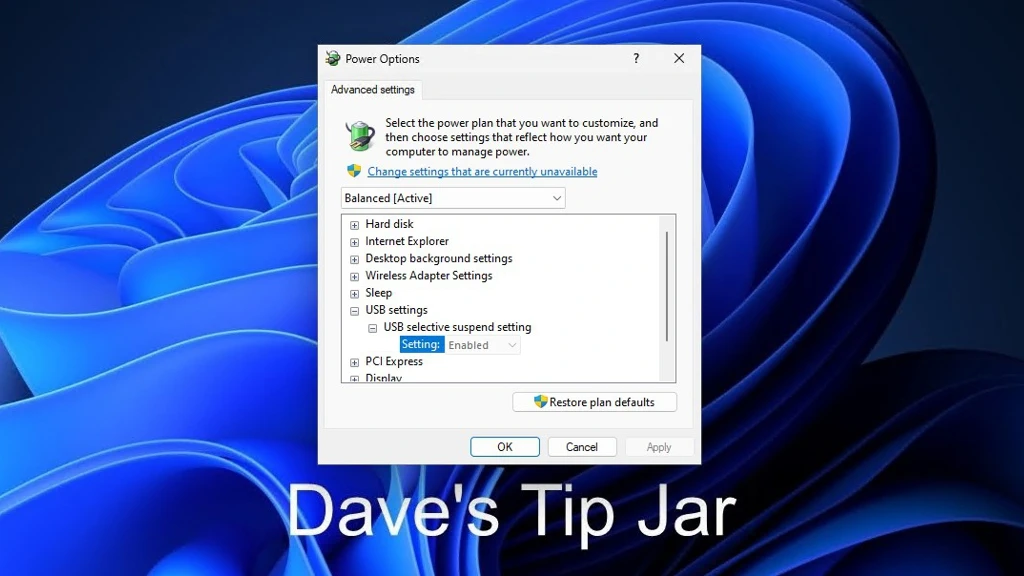
The Power Management tab in Device Manager lets you manage USB device power settings. This setting enables or disables power-saving features for connected USB devices, which can often cause USB ports to stop working.
Here’s how to turn it off:
-
- In the Windows Search Field, type in “edit power plan.”
- Select the first result to open your active power plan settings
- Click Change “Advanced Power Settings”
- Look for the USB Settings option and expand it
- Expand the USB selective suspend setting menu (these are often enabled by default)
- Set both the On battery and Plugged in options to Disabled. (“On Battery” option is only available on a laptop PC)
- Click Apply, then OK
Restart your computer after making these changes, then check whether the USB ports are working.
Scan for Hardware Changes
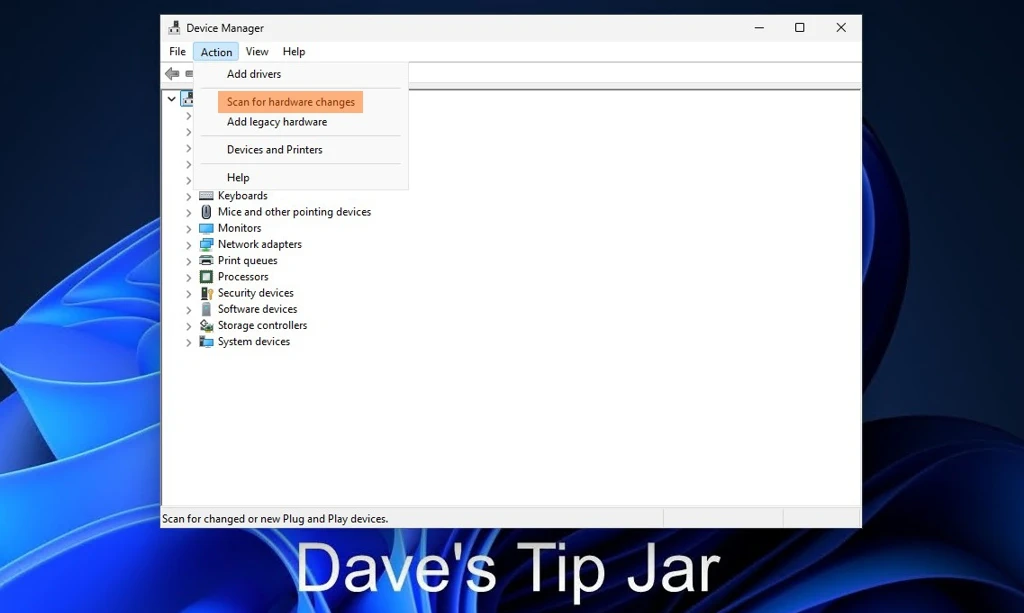
Follow these steps:
-
- Right-click the Start button or press Win + X to open the menu, and select Device Manager
- Once in Device Manager, click on the Action menu at the top of the screen
- Select Scan for hardware changes
This scan typically resolves detection issues, but if the USB ports still aren’t responding, you may have a USB driver issue.
Reinstall USB Drivers
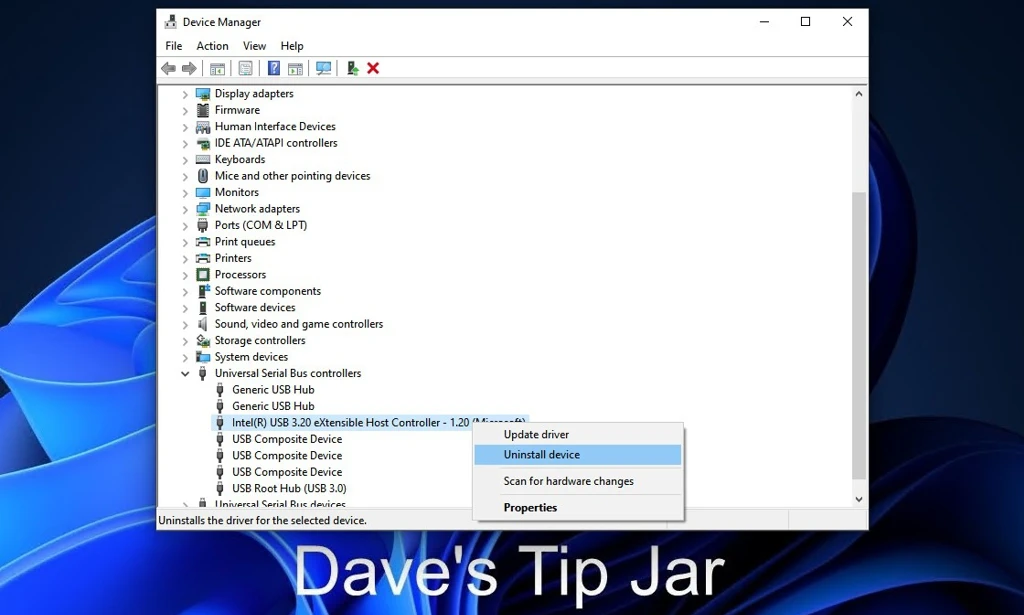
Here’s what you need to do:
-
- In the Windows Search Field, type in Device Manager
- Select the first result to open it
- Expand the Universal Serial Bus controllers section
- Look for entries that say something like USB Host Controller or similar
- Right-click each one that includes the words “USB” and “Host Controller,” and select Uninstall device. Confirm the action when prompted.
- Once all USB-related drivers are uninstalled, restart your PC
After the restart, Windows will automatically reinstall the missing drivers. Your USB ports should now function correctly.
Frequently Asked Questions
Is there a difference between a “dead” USB port and a “blown” one?
Yes. A dead port often refers to a software or firmware glitch where the operating system stops communicating with the hardware. A blown port usually implies physical electrical damage, such as a short circuit. If you smell ozone (a burnt, metallic scent) or see charred plastic inside the port, a surge likely damaged the hardware, and you can’t fix it with settings.
Can a failing Power Supply Unit (PSU) cause USB ports to stop working?
Yes. USB ports rely on the +5V power rail from your computer’s power supply. If the PSU is aging or overloaded by too many internal components (such as a high-end GPU), it may fail to provide stable voltage to the USB headers. This can cause devices to disconnect randomly or fail to initialize entirely.
Why do my back USB ports work while the front ones do not?
The ports on the back of a PC are soldered directly to the motherboard, while the front ports are connected via internal extension cables. If the front ports fail, it is often because the IDC header cable has wiggled loose from the motherboard pins, or the thin wiring inside the case has been shielded by interference or has a physical break.
Final Thoughts
It can be frustrating when you plug in a USB device that fails to connect to your computer. But most of the time, you can fix the issue with simple troubleshooting. Whether it’s cleaning the port, tweaking power settings, or reinstalling drivers, the solutions are simple and require no special tools or expertise.
However, if these steps don’t resolve the issue, you may have a hardware problem with your USB ports or motherboard. In this case, you will need to find a PC repair shop to see if the hardware can be replaced. Of course, this only makes sense if the repair costs are justified compared with buying a new computer.
Follow this guide to confidently identify and resolve common USB port issues, keeping your devices connected and your productivity uninterrupted!
You may also find this article on What USB Port Colors Mean helpful when choosing which port to connect your devices.