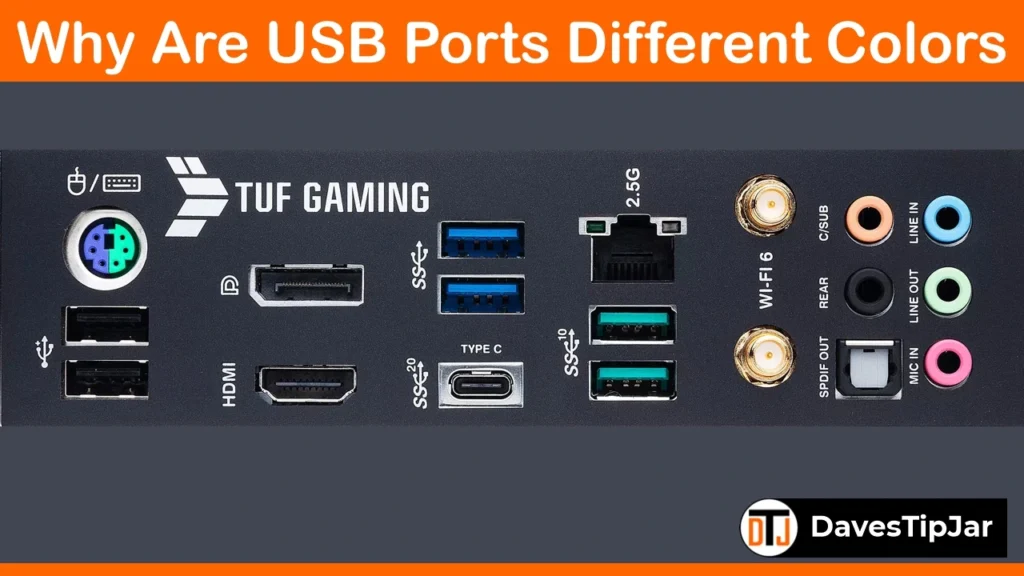
USB ports come in different colors because manufacturers use them as a visual key to show speed, power output, and special features such as Always-On charging.
While the USB-IF standard doesn’t specify official colors, most manufacturers have adopted these unofficial colors for identifying USB port standards.
- Blue indicates USB 3.0, which operates at a speed of 5 Gbps.
- Teal indicates 10 Gbps
- Red and Yellow flag Sleep-and-Charge power
- Black stands for USB 2.0.
Quick Tip: Check the exact specifications in the documentation that came with your PC.
What USB Port Colors Actually Mean
USB port colors help you identify a port’s data speed and power features. The USB Implementers Forum has never made these colors mandatory, so they function as a general guideline, not a certified rule.
Most online guides miss this distinction. Two motherboards with identical-looking blue ports may behave differently. A black port made by one manufacturer could operate at USB 2.0 speeds, while another might at USB 3.0 speeds.
For example, the HP Omen 25L is well known for having shipped with black USB 3.0 ports. So, consider the color first, but don’t treat it as fact.
When I’m building a new system, I always check the color first, then verify it against the specifications. This way, I know both the speed and power without guessing.
My point here is that color shows what the manufacturer intended, while the chipset and firmware define what the port actually supports.
USB Port Color Guide: Every Color Decoded
Below are the common USB colors, along with their usual standard, actual transfer speed and maximum power output. This information is based on USB Type-A ports, as that connector type has most of the color coding; USB Type-C is rarely colored.
White: USB 1.x (The original)
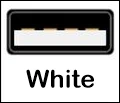
White USB connectors were used for first-generation USB 1.0 and 1.1 ports, introduced in the late 1990s with data transfer rates from 1.5 Mbps to 12 Mbps; they are now effectively extinct on modern PC hardware.
No modern motherboard today has white ports (unless you have a really old system on the shelf for nostalgia). These ports powered early mice and keyboards and provided about 500 mA of current, carrying data in only one direction.
However, the basic Type-A port design remains today, which is why a decades-old USB 1.1 keyboard still works when you connect it to a modern USB 3.2 port. Legacy compatibility is well supported.
Black: USB 2.0
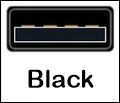
Black ports are USB 2.0 ports, introduced in 2000 with a maximum data rate of 480 Mbps. They’re still found on modern motherboards because they are cheap and reliable.
A black USB 2.0 port provides up to 500 mA of current and can handle low-power devices like keyboards, mice and signal receivers.
An often-overlooked benefit is that many older motherboard BIOS prefer USB 2.0 for firmware flashing and OS installations.
Note: If you connect a mobile phone or tablet to a black port, it may charge slowly or not at all. Some devices will even warn you if it’s connected to a slow charging port.
Blue. USB 3.0, SuperSpeed
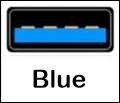
Blue colored ports identify USB 3.0 (later renamed USB 3.1 Gen 1 and USB 3.2 Gen 1), with a data transfer rate of 5 Gbps and a power output of up to 900 mA.
You get about ten times the data transfer rate of USB 2.0 and full backward compatibility. To confirm this, look for the ‘SS’ (SuperSpeed) logo next to the port to make sure you have the right standard. Since blue ports carry more power, they support power-demanding devices and fast phone charging. Dell and Sony are just a few brands that use blue USB ports to make identification obvious.
Teal / Cyan: USB 3.1 Generation 2 (SuperSpeed+)
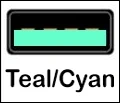
Teal or cyan ports are USB 3.1 Gen 2 (SuperSpeed+), which increases the data transfer rate to 10 Gbps; the green tint is a bit more green than classic blue.
This port allows simultaneous two-way transfer and provides about 900 mA of power. Asus has used teal on motherboards such as the Z270-WS and the TUF B360-Pro Gaming.
Quick Tip: Don’t mistake Blue ports for Teal/Cyan, as the speed difference is huge when transferring large amounts of data.
Red, Yellow, and Orange: Always-On / Sleep-and-Charge
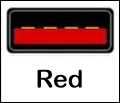
Red, yellow, or orange ports usually mean Always-On or Sleep-and-Charge features, as they continue supplying power even when the computer is switched off or in sleep mode. The most common are Red ports, which are associated with high-speed USB 3.1 Gen 2 or USB 3.2 data speeds up to 20 Gbps.
Less common Yellow and Orange USB ports support older USB 2.0 or 3.0 data speeds up to 5 Gbps.
If you charge your devices from your desktop overnight, then a system that supports these ports is worth it. Red ports usually provide up to 2.1A, which is higher than a standard 3.0 port, and both MSI and Gigabyte prefer to use red ports for this purpose. Yellow and orange ports are different because they indicate Always-On power but can use either USB 2.0 or USB 3.0 wiring, so speeds can vary.
Manufacturers also use different names for this feature: Lenovo calls it Always On USB, Dell calls it USB PowerShare, and HP calls it Sleep and Charge. The lightning-bolt symbol next to a port means the same thing.
Purple: USB 3.1 or Huawei SuperCharge
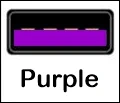
Purple colored ports generally mean the device has USB 3.1 (10 Gbps) or, in the case of Huawei equipment, supports proprietary SuperCharge fast charging up to 66W; purple is much less common than blue or black.
You will usually see purple on Huawei systems, where it marks both Type-A and Type-C connectors that support SuperCharge. In all other instances, purple means a 10 Gbps port with 900 mA of power.
Green: Brand Aesthetics or Quick Charge
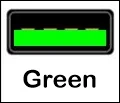
Ports that are green have no fixed meaning. For some devices, green may indicate Qualcomm Quick Charge, while in others it is simply for branding, such as Razer’s green inserts.
Quick Tip: If there is no ‘SS’ logo, then it’s USB 2.0; if the port has ‘SS+’ or displays ’10 Gbps ‘, then it’s part of the USB 3.x standard. Check the motherboard manual if you’re not sure.
USB-C Ports: Why Are These Not Color-Coded
USB-C ports don’t include colors because this port type can support multiple protocols, such as USB 3.2, USB4, Thunderbolt, DisplayPort, and Power Delivery.
A Type-C port could deliver 40 Gbps via Thunderbolt 4 or run at USB 2.0 speeds, depending on the controller. That’s why you should look for port labels like a Thunderbolt bolt, the “SS” mark, a “PD” label, or the printed speed rating, since USB-C is the interface where the latest standards were first introduced.
Quick Note: Some manufacturers do color-code USB-C plastic tongues or port borders to highlight specific capabilities.
USB Port Color Comparison Table
| Color | USB Standard | Data Speed | Power Output | Best Use / Feature |
| White | USB 1.0 / 1.1 | 1.5–12 Mbps | ~500 mA | Legacy mice, keyboards (obsolete) |
| Black | USB 2.0 | 480 Mbps | ~500 mA | Basic peripherals, BIOS/firmware tasks |
| Blue | USB 3.0 / 3.2 Gen 1 | 5 Gbps | ~900 mA | External drives, high-speed transfer |
| Teal / Cyan | USB 3.1 Gen 2 | 10 Gbps | ~900 mA | SSD backups, large file transfer |
| Red | USB 3.1 Gen 2 / 3.2 + Always-On | Up to 20 Gbps | Up to 2.1A | Sleep-and-Charge, fast device charging |
| Yellow / Orange | USB 2.0 or 3.0 + Always-On | 480 Mbps–5 Gbps | Up to 2.1A | Always-On charging (speed varies) |
| Purple | USB 3.1 / Huawei SuperCharge | 10 Gbps | Up to 66W (SuperCharge) | Huawei fast charge, high-speed data |
| Green | Qualcomm Quick Charge/Razer branding | Varies | Varies | Fast charge or aesthetic only |
| USB-C | USB 3.2 / USB4 / Thunderbolt 3&4 | Up to 40 Gbps | Up to 240W (using Power Delivery 3.1) | All modern protocols, no color code |
Note: The biggest mistake is assuming a black port is only USB 2.0. Some manufacturers change the insert colors for cosmetic purposes.
Common Mistakes When Reading USB Port Colors
Even experienced builders get these wrong. Avoid them by verifying the specs for your specific motherboard.
- If color means guaranteed speed: A blue port may have a slower controller if the manufacturer cut corners.
- Disregarding the “SS” logo: The SuperSpeed logo indicates USB 3.x when the color is unclear or absent.
- You can expect fast charging from any port: Only the Always-On ports (marked red, yellow, orange, or with a lightning bolt) power devices when the PC is sleeping.
- Treating USB-C as if it were Type-A: since there is no color, you have to look at the icon and the manual’s specifications each time.
Quick Tip: If there’s a discrepancy between color and behavior, the chipset always wins! Confirm this in your documentation or operating software.
Match the Right Port to Every Device
All of this might feel like information overload, but it’s good to know how to get the most from your USB ports.
If your device’s USB cable fits, it most likely will work. But ask yourself if it’s working at its best. However, if it plugs in and doesn’t work, you may need to troubleshoot a bad USB port or a faulty device.
In most cases, blue ports are faster than black ports, so plug USB external storage drives and USB thumb drives into these ports.
When charging your devices, use a red Always-On port, and for backup devices that support up to 10 Gbps, use the teal/cyan port.
Start by checking the colors on your case’s front I/O and motherboard, then confirm the standard in your manual or in your operating system’s Device Manager.
If you’re curious about the other PC motherboard connections, follow this link.
Quick Tip: As I mention throughout this article, there are no standards for this color coding, so if you see a color not mentioned here or are unsure, always check the specifications in the manual.
Frequently Asked Questions
Why do USB ports come in different colors?
PC and motherboard manufacturers use these colors as a visual key to show what specs the port supports. USB port colors are an unofficial standard, so always check your device’s specifications to confirm the port’s exact capabilities.
Are Red USB ports only for fast charging?
No. Red USB ports usually provide 2.1A of Always-On or Sleep-and-Charge power even when the computer is off or asleep. Also, many red ports support high-speed USB 3.1 Gen 2 or USB 3.2 data, so they handle both fast charging and quick file transfers.
Why don’t USB-C ports have color coding?
USB-C ports don’t use color coding because a single connector can support a variety of protocols, such as USB 3.2, USB4, Thunderbolt, DisplayPort, and Power Delivery. Because color cannot show this wide range, manufacturers have instead used printed icons and labels. To identify the features, look for the Thunderbolt bolt, the “SS” mark, or the speed rating.
Will using the wrong-colored USB port damage my device?
No. Plugging a device into the wrong-colored port will not cause damage. You may notice slower data transfer or charge rate, but you won’t damage your devices. Match your device to a port with the right speed and power for the best performance.