
There are still many old features in Windows 11 that carry over with each version upgrade.
Personally, I still use these old features, and many of us continue to rely on the tools from previous versions, dating back to Windows 1.0.
Have you ever wondered where those old features are hidden in Windows 11? Let’s go on a treasure hunt and find them together.
Key Takeaways
- Windows 11 retains classic features like the Control Panel and Command Prompt, which are vital for productivity and efficiency.
- Upgrading to Windows 11 allows access to updated features while retaining many classic tools from previous versions.
- Key old features in Windows 11 include Disk Management, Disk Cleanup, and the Run Dialog, all of which are accessible for legacy functionality.
- Despite new interfaces and settings, many users still prefer the old features in Windows 11 for their familiarity and efficiency.
- Exploring these old features can enhance your Windows 11 experience and streamline daily tasks.
Upgrading to Windows 11 is the First Step
Before looking for these classic features, consider upgrading to Windows 11 if you want the latest features.
An in-place upgrade via Windows Update lets you install Windows 11 without a complete reinstall. This is helpful when you need to retain your existing data and applications.
Can Your PC be Upgraded?
Upgrading to Windows 11 shouldn’t be taken lightly. Ask yourself if the Windows 11 feature updates are something you want or need right now.
While most upgrades go smoothly, there are a few things you should know to make sure your system is ready.
First, be sure your device meets the minimum system requirements for Windows 11. These requirements include having a compatible processor, sufficient RAM, and enough storage space.
Additionally, you will need a Microsoft account to upgrade to Windows 11. However, there are ways around this (for now).
If you’re upgrading from Windows 10, it’s a piece of cake, or easy as pie, depending on which dessert you like best!
Windows Update makes it easy to update your system to Windows 11. Just follow the prompts, and you’ll be up and running in no time.
However, if you’re running an older version of Windows prior to Windows 10, you may need to perform a clean install. This means starting from scratch, so it’s important to back up all your important files and data before you begin.
Initially, Windows 11 was not supported on some systems that could have easily run it. This was mostly due to a lack of support for the Trusted Platform Module (TPM). This is just Microsoft being Microsoft!
There are some hardware workarounds that allow many to perform a direct upgrade, such as USB TPM modules, provided the motherboard supports them.
However, while you can now do a fresh install on previously blocked system specs, you cannot directly upgrade from Windows 10 unless the system meets the minimum requirements.
It requires a few extra steps, but one benefit is that a clean install gives your PC a fresh start. Just make sure you’ve backed up all your data!
Whichever choice you make, upgrading to Windows 11 will give you more new features in a more modern operating system.
Navigating the New Interface
Before digging into the old features, be sure to explore what’s new in Windows 11.
New Changes With Familiar Features
Windows 11 operating system brings a fresh, updated look to your desktop, but don’t worry—many of your favorite features are still there.
Additionally, you may prefer these features to the ones we cover below, which are still available but not yet visible.
Here are some of the key changes:
- Start Menu: The Start menu is now centered on the taskbar by default. However, after user complaints, you can now set it to the left as in previous Windows versions. It’s just as familiar as before, with easy access to your favorite apps and recent files.
- Settings App: The new Settings app is more organized and user-friendly. Spend time exploring its features, and you’ll find it easier to manage your system settings and preferences.
- New File Explorer: The File Explorer has also been updated. This new version has a simpler interface. However, I still prefer the old file explorer because I like having access to more tools on the toolbar. Some people like the new file explorer layout, while others don’t. You’ll just need to try it.
- Customization: Windows 11 offers many customization options, especially for your desktop. Changing the taskbar alignment, selecting themes, plus an enhanced multiple desktop mode that many will find handy.
If you’re new to Windows 11, take some time and play around with the new interface. If you like one of the older versions we cover below, they’re still there…for now!
Old Features in Windows 11 That Never Seem to Die
While Windows 11 has updated many of these legacy features, I find myself reverting back to these comfort tools almost daily. They are not just relics of the past but essential tools that can enhance your productivity and efficiency in Windows 11.
Regular security updates are crucial for maintaining the safety and reliability of these old features.
Here are the features we’ll cover in this guide:
- Command Prompt: a text-based interface for running commands and scripts.
- Run Dialog: a launcher for programs and files with a keyboard shortcut (Win + R).
- Disk Management: a tool for managing storage devices like hard drives and partitions.
- Control Panel: the classic interface for accessing many system settings.
- Disk Clean-up: a utility for removing temporary files and freeing up storage space.
- Character Map: a tool for inserting special characters that are not on the keyboard.
- File Explorer: the file manager for browsing and managing files and folders.
Here’s how to find these old classic features hidden in Windows 11. Don’t be shy—give them a try! And don’t be afraid to explore and experiment with them.
You might discover a new favorite tool that further enhances your Windows 11 experience.
Command Prompt (Introduced in Windows NT)

Remember the Command Prompt? It’s like the Swiss Army knife of Windows. It is handy for troubleshooting, running scripts, or even feeling like a hacker from a ’90s movie. Fun times!
Type “cmd” into the Start menu search bar to find it. Voila! There it is. Having this tool at your fingertips means you’re only a few keystrokes away from solving problems or quickly accessing system details.
Why Do I Need the Command Prompt as a Power User?
So, why would you need to use Command Prompt in the first place? Well, think of it as your trusty behind-the-scenes assistant.
Here are a few reasons why the command prompt is still a hand tool.
Run Diagnostic Tools: If your new app isn’t working as expected, or if you need to run Windows OS utilities to check for disk or data corruption, you can use the Command Prompt to run diagnostic tools to troubleshoot these issues.
File Management: It’s also a powerhouse for file management tasks—you can move, delete, or copy files and folders faster than navigating through a maze of windows.
Developers love the Command Prompt for running scripts and automating repetitive tasks. Additionally, it’s ideal for accessing hidden features and settings that may not be readily available through the standard graphical interface.
Essentially, the Command Prompt is your go-to for getting under the hood of your system and making it run just the way you like it.
So, what about “PowerShell”? Isn’t it the same as Command Prompt? In function, yes, although it has some advantages over the old command prompt. Some of these are:
- Improved scripting capabilities
- Ability to work with objects and pipelines
- More powerful automation features
Microsoft may also promote PowerShell over the old CMD command. Many old-school DOS Geeks, like me, still use it for older scripts because some old dogs like me hate new tricks.
However, I’ll say that PowerShell is the recommended tool for most command-line tasks.
The Run Dialog (Introduced in Windows 95)
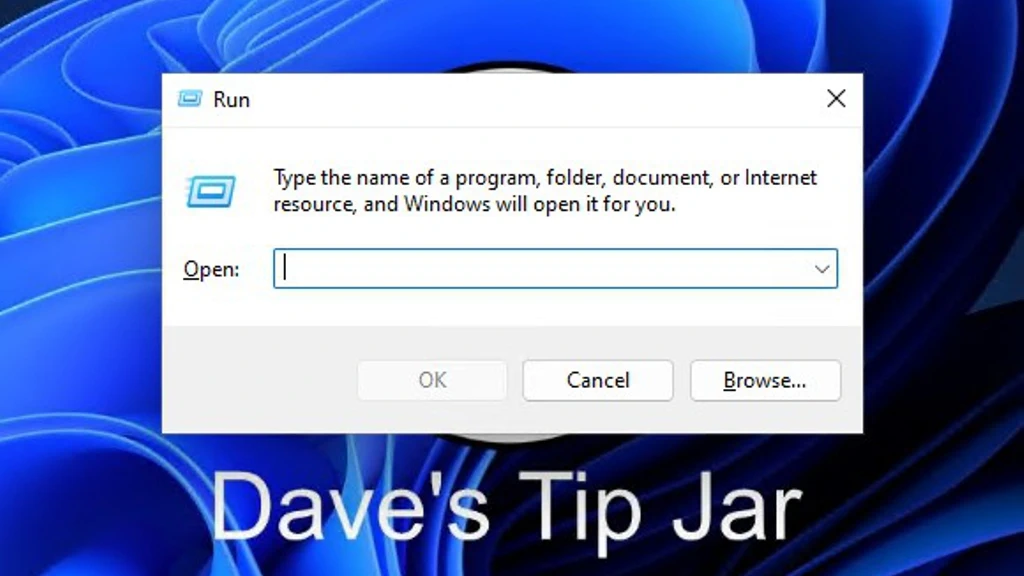
The Run Dialog in Windows 11 is a timeless tool, ever since it was introduced in Windows 95. This feature still provides a quick and easy way to launch applications, access system settings, and open files without clicking through multiple menu layers.
Since its debut, the Run Dialog command has remained a favorite among power users and tech nerds like me.
Its simplicity and speed make it a valuable tool to this day for anyone who knows Windows quick commands.
The “Win + R” keyboard shortcut opens this dialog box, allowing you to run commands instantly.
Once you learn a few of your favorite “RUN” commands, you’ll go from feeling like a casual user to a seasoned IT professional.
Embrace your inner nerd and give this classic feature a try. You’ll discover how it can simplify many of your daily Windows tasks.
I expect that once you get the hang of using the Run Dialog, you’ll wonder how you ever lived without it.
Who Uses the Run Dialog Box?
The Run Dialog box is a favorite tool among power users and tech enthusiasts. However, once users get used to it, it’s equally useful for everyday Windows users.
Whether you’re a student, a professional, or a casual user, the Run Dialog can be a handy tool in your Windows 11 arsenal.
I consider myself a Power User. I use the Run Dialog for its speed and efficiency in launching programs or accessing system settings with a quick command rather than navigating the clutter of menus and icons.
As a former IT professional, I found the Run Dialog indispensable for quick access to administrative tools and configuration settings.
However, if you give it a try, you will find it handy for tasks you do often, like opening apps or using the system tools you use most.
The Run Dialog is a very useful tool for anyone looking to save time and increase efficiency when working in Windows.
Disk Management (Introduced in Windows 2000)
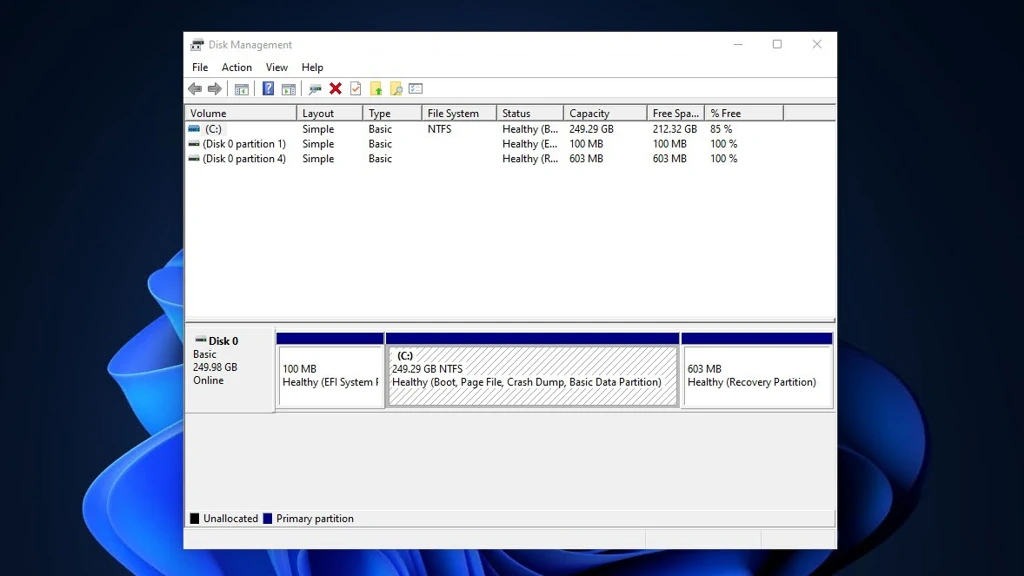
I was a huge fan of Disk Management when it first popped up in Windows 2000. Its simple user interface was my go-to tool for managing all connected storage.
And while there are many third-party disk management tools, unless they offer a feature you need that Windows does not, I recommend using this tool.
The quickest way to open it is by searching for “Disk Management” in the Start menu. It’s a lifesaver when organizing your drives or troubleshooting storage issues.
What are some common uses of the disk management tool?
There are many reasons why you might need to use the Windows Disk Management tools. For instance, if you’ve just bought a new hard drive or SSD, you would need to initialize and format it before you can use it.
Maybe you’re running out of space on your current drive and want to add a new partition or resize an existing one to better manage your files and applications.
If you’ve got a jumble of drive letters and want things more organized, Disk Management lets you change those letters to something that makes more sense.
However, always use caution when changing drive letters, as it can break some fixed file paths in programs. This requirement is mostly true with video and graphics programs that define folders for projects and temporary files.
Do you have an old drive you no longer use and want to repurpose? The disk management tool can help you wipe it clean.
It’s also helpful in troubleshooting issues like a drive not showing up in File Explorer, which often indicates it needs to be assigned a drive letter or formatted.
In short, if you need to manage the storage installed on your PC, you’ll likely use the Disk Management tools.
The Control Panel (Introduced in Windows 1.0)
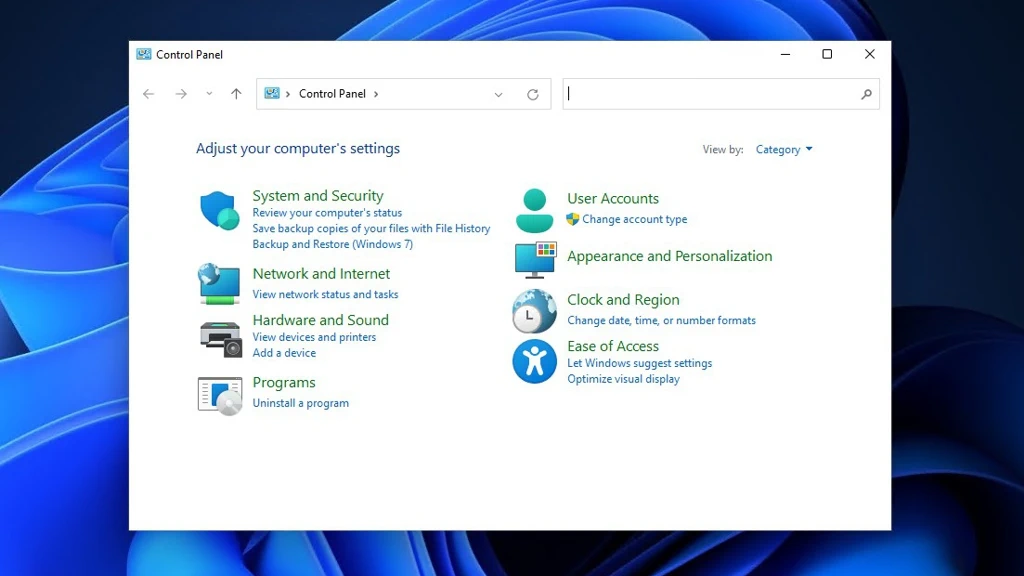
Of all the old features in Windows 11, the Control Panel is my go-to! It’s a treasured collection of settings that goes back to the earliest versions of Windows, and one I don’t think I could live without. Okay, maybe I could, but I wouldn’t like it!
While Windows 11 has the new Settings app, the Control Panel still controls many of the deeper, more granular settings we’re all used to.
To open it, type “Control Panel” into the Start menu search, and there it is, waiting to show you all those familiar features in one place, just the way you like them.
Most Used Features in the Windows Control Panel
While all these settings are now in the new Settings app, the Control Panel remains the go-to for many of us.
Here are some of the most frequently used features I’ll bet many are still using:
- Programs and Features: This is where you uninstall or change the software installed on your PC. This is the go-to tool if an installation becomes corrupted or you need to remove the bloatware.
- Network and Sharing Center: Whenever you need to troubleshoot a network connection issue or set up a new network, the Network and Sharing Center is where you’ll go. It offers detailed insights into your network connections and provides advanced network settings to configure and resolve connection problems.
- System: Under this category, you’ll find information about your PC’s hardware, including the processor, RAM, and operating system version. You can also access advanced system settings for performance, remote desktop, and system protection.
- Device Manager: If you’re having trouble with a piece of hardware, Device Manager is where you can update drivers, disable malfunctioning devices, or view detailed properties about each component and device connected to your computer.
- User Accounts: You manage user permissions, account types, and login methods here. Whether you’re setting up a new account for a family member or changing your password, you’ll find all the user options here.
- File Explorer Options: From here, you can customize how files and folders display in Windows. This includes changing settings for hidden files, folder view options, and the display of items in the navigation pane.
Although Microsoft encourages the use of the modern Settings app, the Control Panel remains the all-in-one window for accessing these essential settings tools.
It’s the tried-and-true way many choose to dive deeper into system settings.
Disk Cleanup (Introduced in Windows 98)
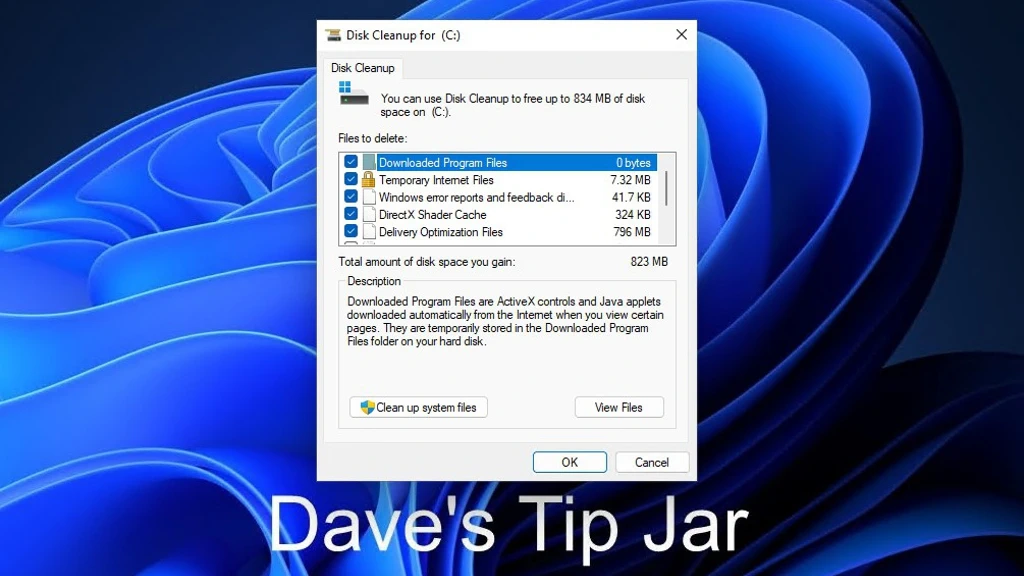
Nothing feels better than a clean hard drive, right?
Okay, I can think of a Dozen other things that feel better, but when you’re running out of disk space, the Disk Cleanup utility will help remove the clutter of system and temporary files created over time.
You can find it by typing “Disk Cleanup” into the Start menu. It’s the simple old-school way to reclaim disk space for your important files, such as selfies and cat videos!
How Often Should I Use Windows Disk Cleanup?
Ideally, you should run the Disk Cleanup tool at least once a month. This regular maintenance ensures your system remains clutter-free and operates at its best.
However, even though this disk utility has no built-in scheduler, some third-party tools and applications will run Disk Cleanup on a set schedule.
Additionally, if you’re familiar with it, you can use the Windows “Task Scheduler” to create a basic task to trigger Disk Cleanup on a daily, weekly, or monthly basis.
The Character Map (Introduced in Windows NT 3.1)

If you’ve ever needed a special character that isn’t on your keyboard, the Character Map is the hero you didn’t know you needed. It’s great for finding symbols, foreign characters, or any other special glyphs.
To open it, search for “Character Map” in the Start menu. This tool is a must-have for anyone who regularly deals with multilingual text or special symbols.
Who Uses the Character Map in Windows
Have you ever found yourself in a situation where you needed a special character that wasn’t on your keyboard? That’s where the Character Map comes in!
Here are a few reasons why you might use this handy tool:
- Special Symbols: Whether you’re drafting a math paper or trying to be creative in your social media posts, the Character Map offers access to many special symbols not found on your standard keyboard.
- Foreign Languages: If you frequently type in multiple languages, the Character Map makes it easy to find foreign characters and accent marks. It helps ensure your text is accurate and properly formatted.
- Accurate Translations: For translators and language enthusiasts, the Character Map ensures every character is correctly represented, preventing miscommunication and translation errors.
- Graphic Design: Designers and typographers can easily access unique glyphs and font-specific characters for their creative projects.
- Consistency: The Character Map allows users to find and use characters consistently across documents, emails, and applications, maintaining a unified, professional look.
I primarily use the Character Map for the “trademark” and “copyright” symbols. And a few character accents.
So next time you’re hunting for that non-standard character or can’t remember the “ALT-Key” special character value, this is when the Character Map comes in handy!
File Explorer (Introduced in Windows 95)
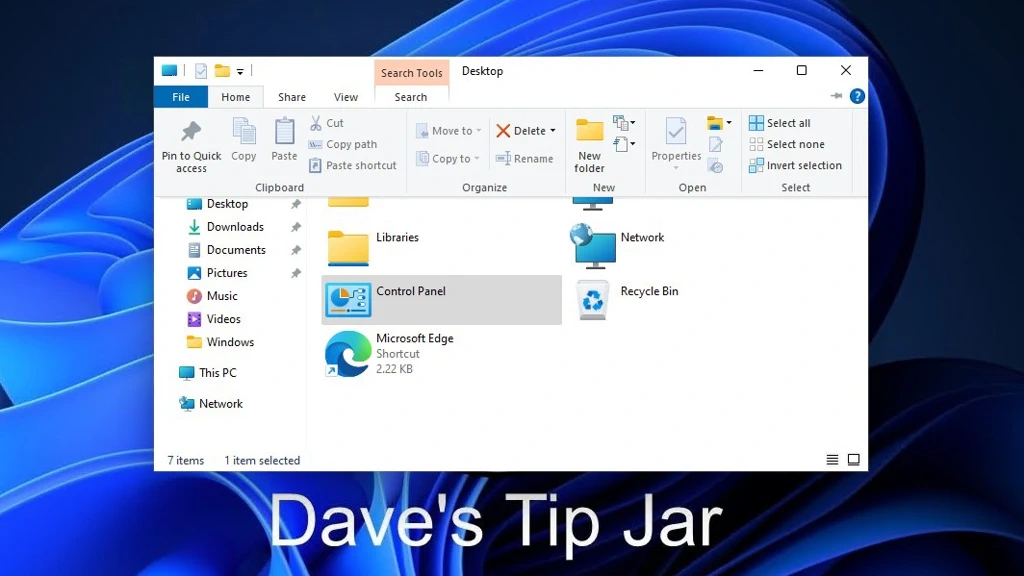
This one isn’t exactly hidden, but it’s worth mentioning because it’s essential. File Explorer is your primary way to access all your files and folders.
It goes all the way back to the Windows 3.x versions (i.e., File Manager and then Windows Explorer). Technically, this version started with Windows 95.
There have been some design changes in Windows 11, but it’s still the same file manager underneath.
While many will find the new streamlined File Explorer just fine, I’m old-school and prefer seeing all the toolbar icons on the screen without having to dig through menus.
To temporarily view these, open Control Panel, select View by Category if you’re not already there, and then click the “Up” arrow on the left side of the menu bar.
File Explorer should now be in Classic Mode. However, this only opens it in classic mode and does not permanently change the setting.
At the time of this writing, all the other methods for making this change permanent seem to have been disabled by recent updates.
Some third-party tools can make this change permanent, but I must advise extreme caution when downloading anything online.
Just because it’s available to download from a professional-looking website doesn’t mean it’s safe. Do your best to verify the developer’s trustworthiness, and proceed at your own risk.
Also, just because you watched a YouTube video that linked to a utility like this does not make it safe!
As you can see, I’m not a fan of implementing third-party tools that aren’t native to Windows or available on the App Store.
Another challenge you might face is accessing Quick Access folders that default to OneDrive instead of your local storage.
You can adjust local machine settings to store frequently accessed files locally rather than in the cloud.
Regardless of which file explorer version you prefer, both help you organize your documents, photos, and music.
Final Thoughts on Old Features in Windows 11
So, there you have it—a quick reference guide to finding the most used and missed old-school features in Windows 11.
While some of these features have been replaced in the Windows 11 Settings app, I’m sure many still rely on them and actually prefer them.
Some users give up on Windows and try an alternative operating system, such as Linux or another variation.
Linux Mint is often recommended as a viable alternative for older machines or as a backup system, particularly given the challenges with Windows 11 compatibility and updates.
Before diving into Linux, consider whether it can run the apps you need.
Others may decide to make the switch to Team Apple. I tried using the Apple operating system many years ago. It never caught on for me. Mostly, due to unsupported hardware. Plus, I need more than one mouse button!
However, if you’ve never used an Apple Mac computer, it might be a good alternative.
And most importantly, if you’re a PC Gamer, DON’T DO IT!
If you took the leap and upgraded to Windows 11 to explore all the new features, Windows 11 might fix a support issue you had with an older feature.
My point is that Windows 11 still includes classic apps and utilities that many users will continue to use until they finally decide to say goodbye. I’m not looking forward to that day!
Frequently Asked Questions
- What old features are still available in Windows 11?
Windows 11 retains classic features like the Control Panel, Command Prompt, Disk Management, Disk Cleanup, and the Run Dialog, which are essential for productivity and efficiency. - How can I access the Control Panel in Windows 11?
You can access the Control Panel by typing “Control Panel” into the Start menu search bar. It provides access to many system settings that are not fully integrated into the new Settings app. - What is the Run Dialog, and how do I use it in Windows 11?
The Run Dialog is a quick launcher for programs, files, and system settings. You can open it by pressingWin + Rand typing the desired command. - Why is the Command Prompt still useful in Windows 11?
The Command Prompt is a powerful tool for troubleshooting, running scripts, and managing files. It remains a favorite among power users for its speed and versatility. - How can I clean up disk space in Windows 11?
You can use the Disk Cleanup utility by typing “Disk Cleanup” into the Start menu. It helps remove temporary files and free up storage space on your system.


I prefer the old right-click menu. It should just give you all your options without have to again click on Show more options. I notice many features and settings are now buried layers deeper that they need to be. It’s like the developers don’t even use their own product. SMH!
I prefer the old way too. But I’m also an old dog that doesn’t like new tricks! LOL! I actually have a system that sometimes shows the old context menu instead of the new one. I’m not sure why, but it’s possible the upgrade didn’t complete correctly, and some old remnants of Windows 10 are still in the registry.
You have documented that this new version is the worst since “Bob.” Do you remember “Bob?? Look it up! Microsoft needs to issue a cpmprehensive down load which will restore features in Windows and Office (and anything else trashed) so that we do not need to waste time figuring out where you hid stuff!
OMG! I remember “Bob”! What a disaster! Nothing like trying to implement a Graphical User Interface on top of the Windows Graphical User Interface. Some days, I really regret upgrading to Windows 11. I have more issues with apps freezing and requiring a hard restart than I ever did on Windows 10.
I’m with you on Control Panel. I really hate having to dig through the new settings menus just to find what I’m looking for. I know I can simply search for it, but I really can’t let go of my old school ways with Windows!
I’m right there with you on the “Old School” ways! And being an old dog, I often find it hard to switch to the “New” tricks! LOL!