
 Let’s talk about how to improve Windows 11 privacy settings. With all that we do online, we find that more of our personal user data is up for grabs and used to profile us and our online activities.
For example, do you think those home automation assistants and smart speaker services are actually free? Ever wonder why they don’t charge you for those services?
While you don’t technically “pay” a subscription to use them, they do cost you by tracking “how” you use them, so their providers can “sell” target marketing aimed at you.
Microsoft Windows is just like every other digital tool you use online. They create a profile of “you” to learn your likes, dislikes, interests, and spending habits. All to tailor experiences to you, sell targeted advertising and more.
But don’t worry; I’m here to guide you through some simple steps to improve your privacy on Windows 11. Also, these privacy settings apply to prior Microsoft operating systems, such as Windows 10.
So, let’s look at these essential tips to improve your online privacy!
To Improve Windows 11 Privacy – Use a Local User Account
First things first, I highly recommend switching to a local user account. This option is becoming more difficult as Microsoft keeps disabling known workarounds, forcing you to log in to Windows 11 with a Microsoft email account.
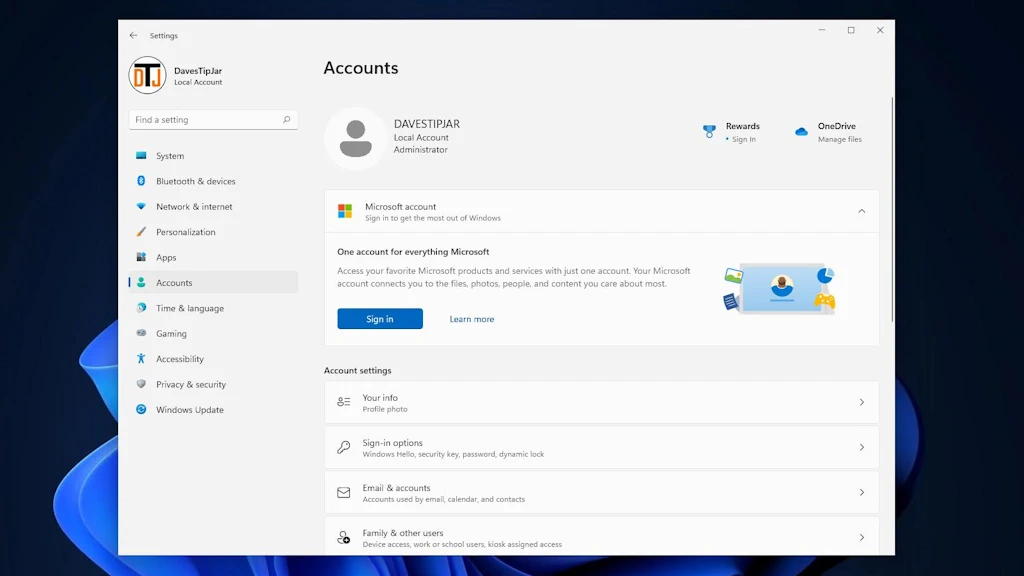 Using a Microsoft account connects your data across multiple devices. This account association is a handy feature for some, but it isn’t always necessary. In a future article, we’ll cover the pros and cons of using a Microsoft account.
Switching to a local account will improve Windows 11 privacy and keep your data more contained. It’s like taking back control over who gets to see what you’re doing.
Quick Tip:
If you already use a “Local User” account to log in to Windows, some of these privacy settings are already disabled. However, when you use a connected Microsoft Account to log in to your Windows PC, most privacy settings are enabled by default. Consider disabling those you do not use.
Delete Your Microsoft Account Data
If you’re not actively using your Microsoft account, consider deleting the data associated with it.
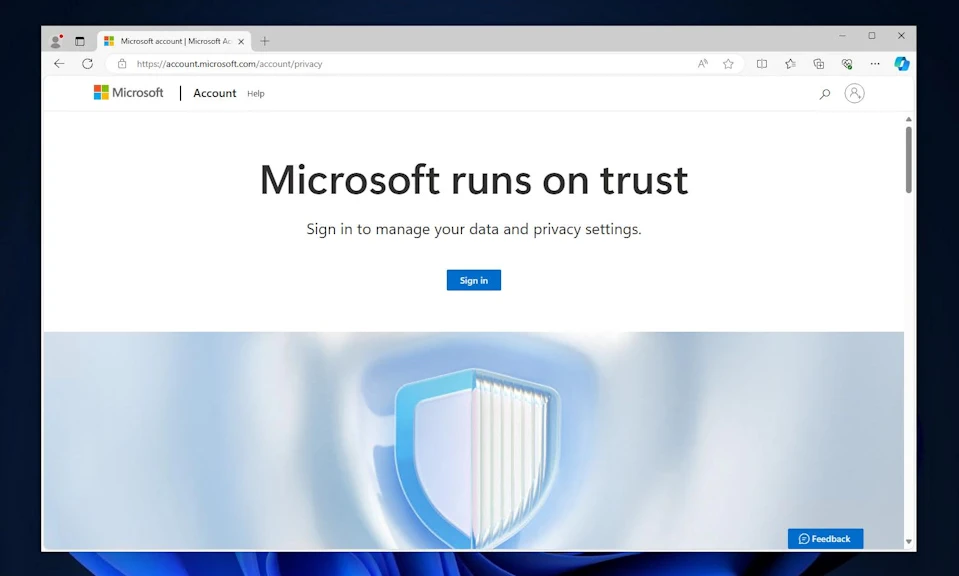 This data might include emails, calendar events, and other personal data stored on Microsoft servers.
It’s a straightforward way to minimize your digital footprint, and why leave it out there unless it benefits you?
Disable Location Tracking
Windows 11 has a built-in location tracking feature. Wait a minute…really?
Everyone wants to know where you are! It’s a significant factor in building your digital profile to better target you with things such as online ads.
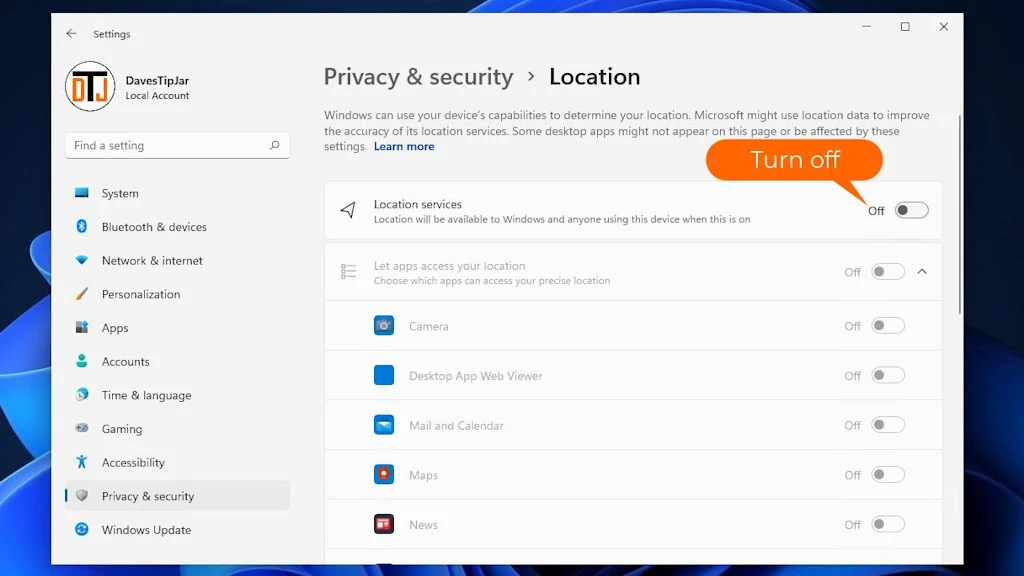 While enabling location services in Windows 11 can be handy for certain apps, like widgets for local weather and traffic that rely on your location data, it’s often unnecessary.
So, how do Windows Location Services work? Basically, with your home PC, your IP address (the address that identifies your PC on the network) helps locate you. Outside of that, your neighbor’s Wi-Fi networks also help determine your location.
Turning off this feature will improve Windows 11 privacy by preventing the Windows operating system from constantly pinging for your location data.
Think of it as putting on Harry Potter’s invisibility cloak when you don’t want to be tracked.
Disable Ad Tracking
Have you ever noticed how ads seem eerily accurate? You search online for some product or service, and like a portal into your mind, you start seeing personalized ads for those very same products. That’s ad tracking at work.
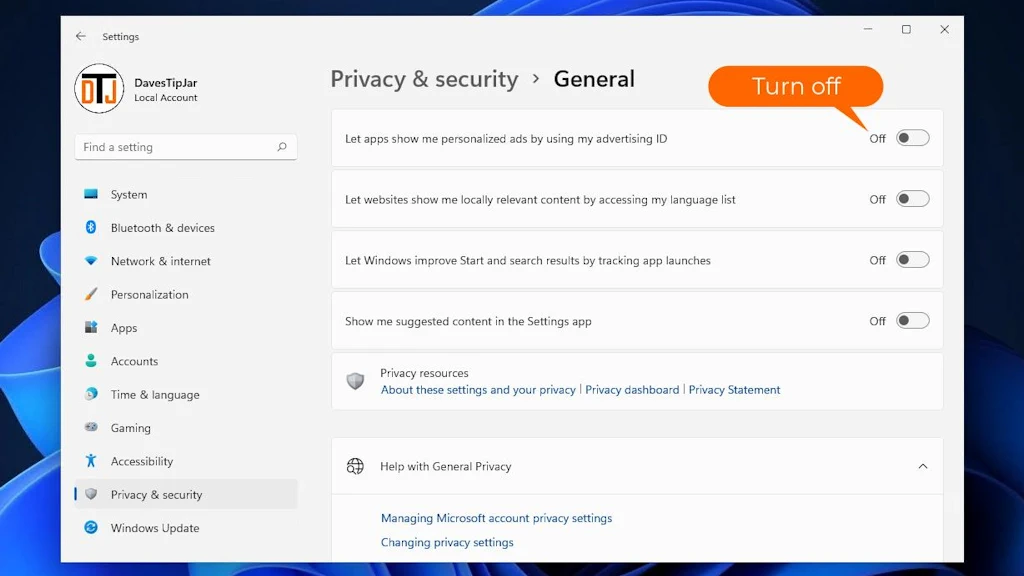 By turning off ad tracking in Windows 11, you’ll stop Microsoft from collecting this data used to profile how you use Windows.
Plus, it helps keep those impulse buys at bay!
It’s just another small step that can make a big difference in online privacy.
Disable and Clear Your Activity History
Like keeping a daily journal, Windows 11 logs many of your activities, from the search history of the websites you visit to the documents you open.
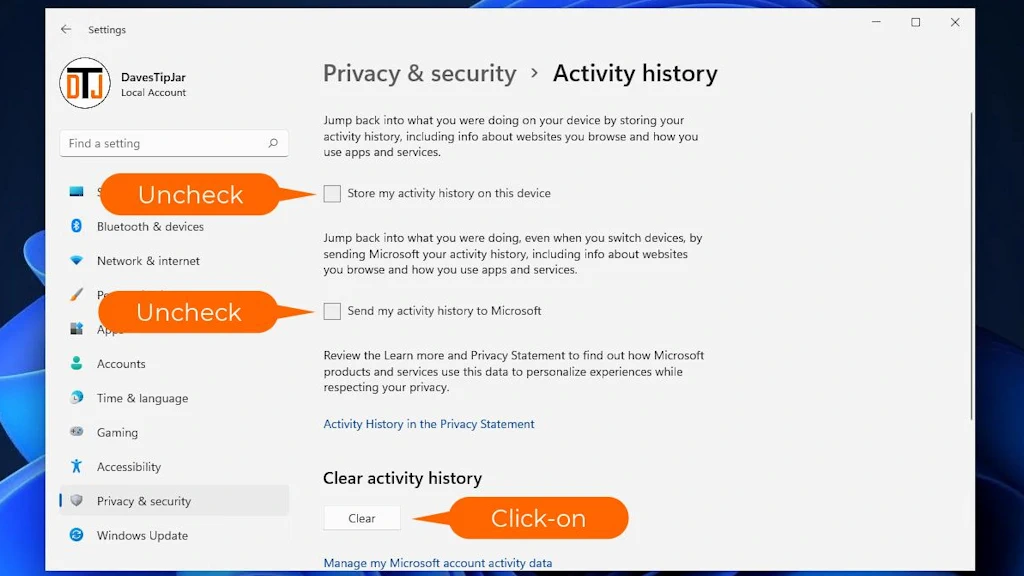 By disabling activity history, you prevent this data from being collected. Afterward, clear the existing activity history to remove the currently collected activity history.
Some consider this a handy feature, and it would be if not used to profile my use of Windows.
Disable the Camera and Microphone for Certain Apps
Just because you installed an app from the App Store doesn’t mean the developer isn’t trying to overreach by gathering info on how you use it.
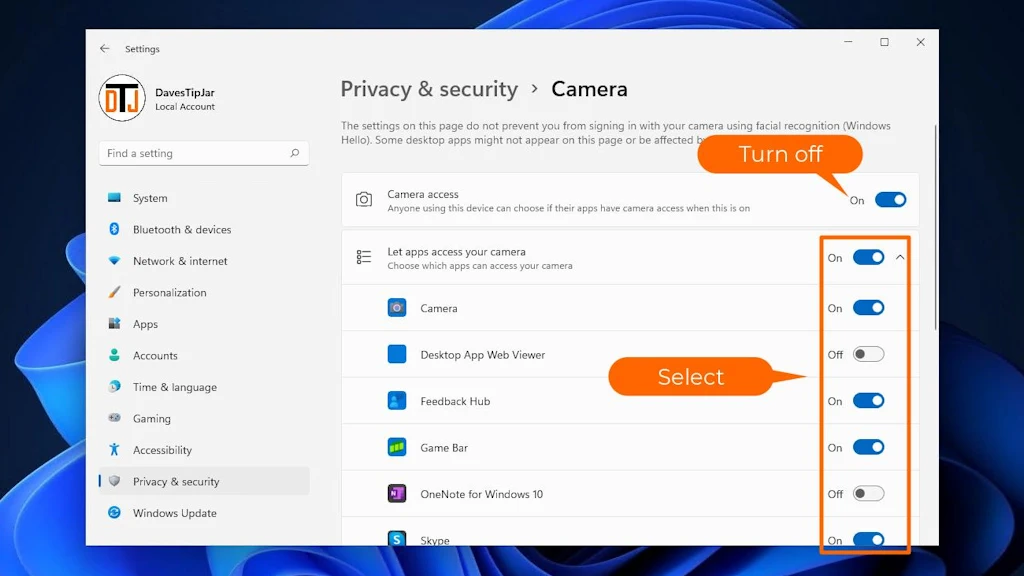 Plus, not all apps need access to your camera and microphone. Go through your app settings and disable access for apps that don’t require them.
Just ask yourself which apps you use with your camera and microphone. For example, if you use Microsoft Teams, this is valid.
However, if some other app or utility that doesn’t require audio or video has permissions, you should also disable those.
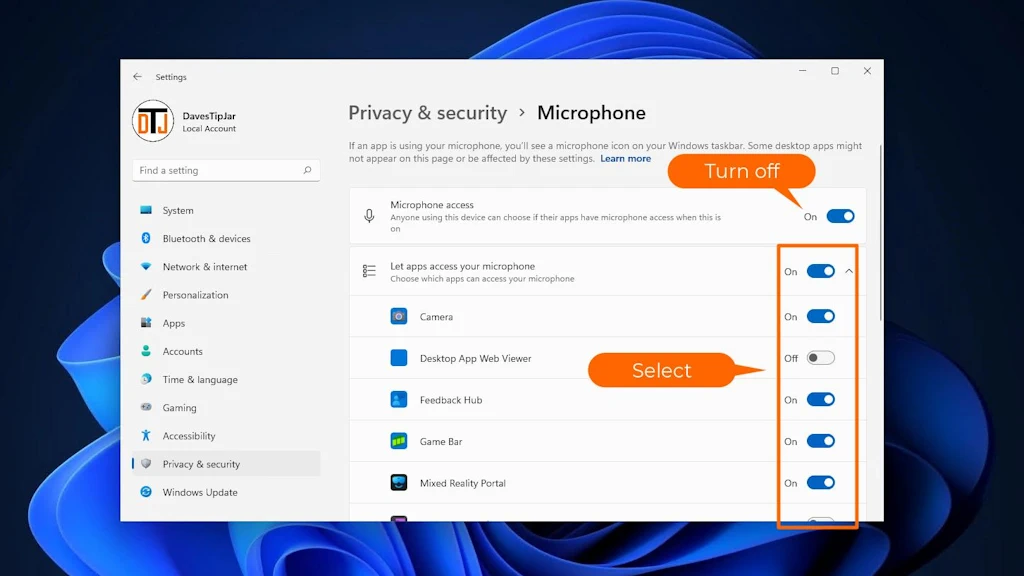 When you want privacy, you close your curtains and lock your doors. So, why leave these enabled if you don’t have to?
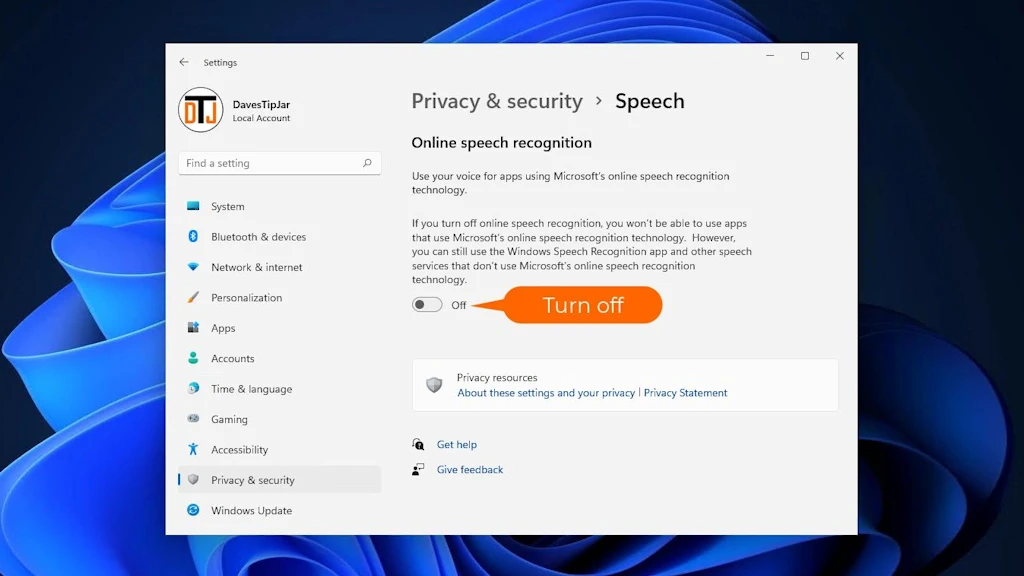
Turn Off Online Speech Recognition
Online speech recognition sends your voice data to Microsoft servers. Since my very first computer, I have never used any text-to-speech utilities.
 Okay, I tried a speech recognition app back in the day called “Dragon Naturally Speaking”. I only tried it once, when I had a client who benefited from this technology, but it hasn’t been a helpful tool for me.
Plus, I wouldn’t be the awesome keyboardist that I am today!
Therefore, if you don’t use speech recognition, turning it off helps improve your privacy.
Why shout in a crowded room for all to hear when a whisper gets it done!
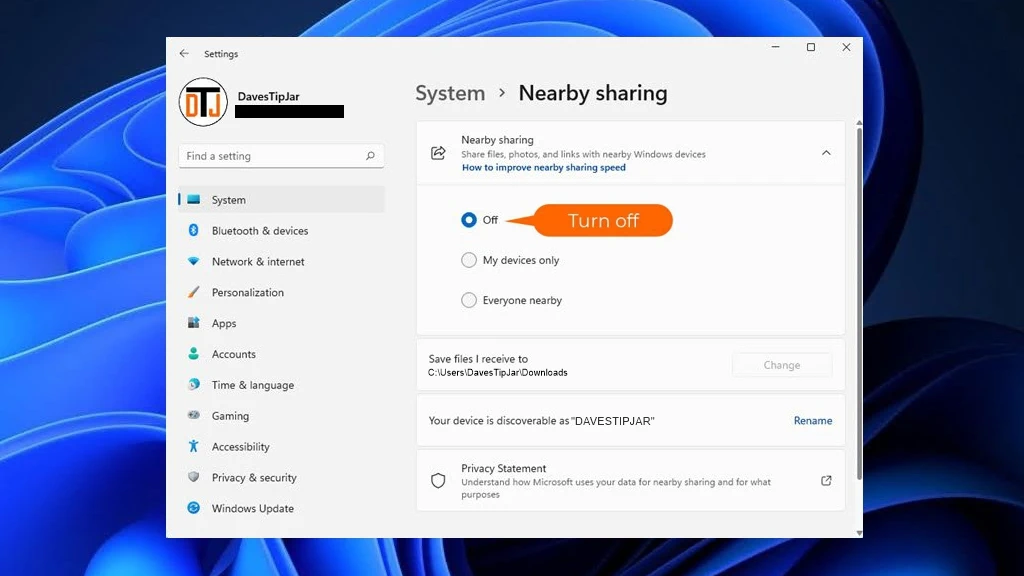
Disable Shared Experiences
Shared experiences allow apps and other devices to share data with your PC.
While shared experiences in Windows 11 can be quite helpful in specific scenarios. This feature allows your apps and other devices to communicate and share data with your PC.
 If you work from two different locations, being able to start a project on your desktop and continue it on your laptop could be handy.
So, no matter what you’re working on, it helps maintain continuity and enhances productivity.
Not everyone may find a use for this feature. However, shared experiences can save time and hassle for those who regularly switch between devices.
However useful as it may seem, it’s also a potential privacy risk. Turning it off keeps your information more secure and will improve your Windows 11 privacy.
Turn Off Personalized Content
Personalized suggestions are based on your activity, but, as with other data-collection features, they come at the cost of your privacy.
Personalized suggestions are just that. Windows 11 will provide tailored experiences based on your activity and often display them under the Start menu.
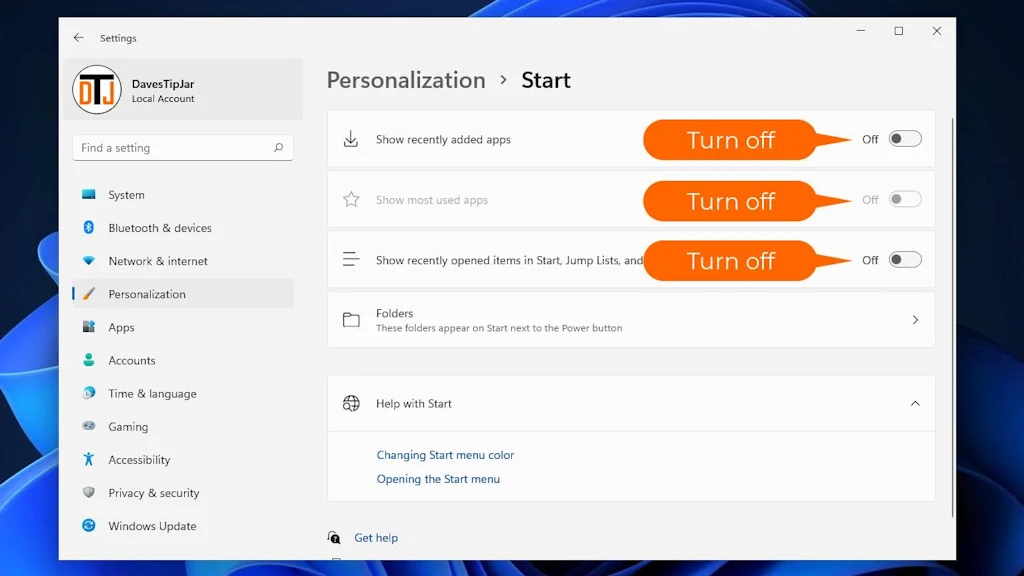 By tracking how you use your PC, Windows 11 will suggest content that it thinks will enhance your experience. These include frequently used apps, websites you visit, and settings you adjust.
Also, Windows might recommend shortcuts to frequently used apps or propose new apps that align with your interests.
While some may find these suggestions helpful, they also require significant data collection, which may raise privacy concerns for some.
Not interested in suggestions. Consider turning off these features to prevent Windows 11 from offering recommendations based on your PC usage. It’s like telling Windows, “Hey, I’ve got this!”
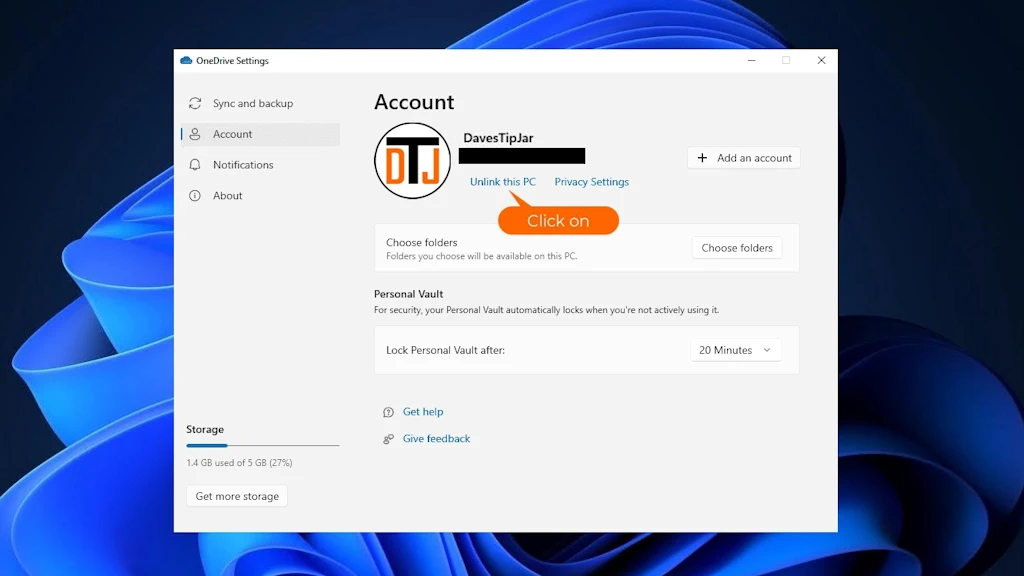
Disable or Uninstall OneDrive
OneDrive is like many other cloud storage solutions that will sync your data across the internet.
Maybe I’m just a little too “Old School,” but why would you let your personal information out of your control? And by that, I mean store it on someone else’s computer.
 If you trust Microsoft to keep your data secure and you have a genuine need to use a cloud storage service like OneDrive, by all means, use it as needed.
However, if you don’t need this service, consider unlinking it from your PC or uninstalling it.
And if you’re looking for a safe place to back up your data, consider a local external storage device.
Limit Windows Telemetry and Diagnostic Data
Nowadays, everyone wants to collect your telemetry data to improve their products and services.
Windows 11 is no different in wanting to collect this diagnostic data to improve the user experience.
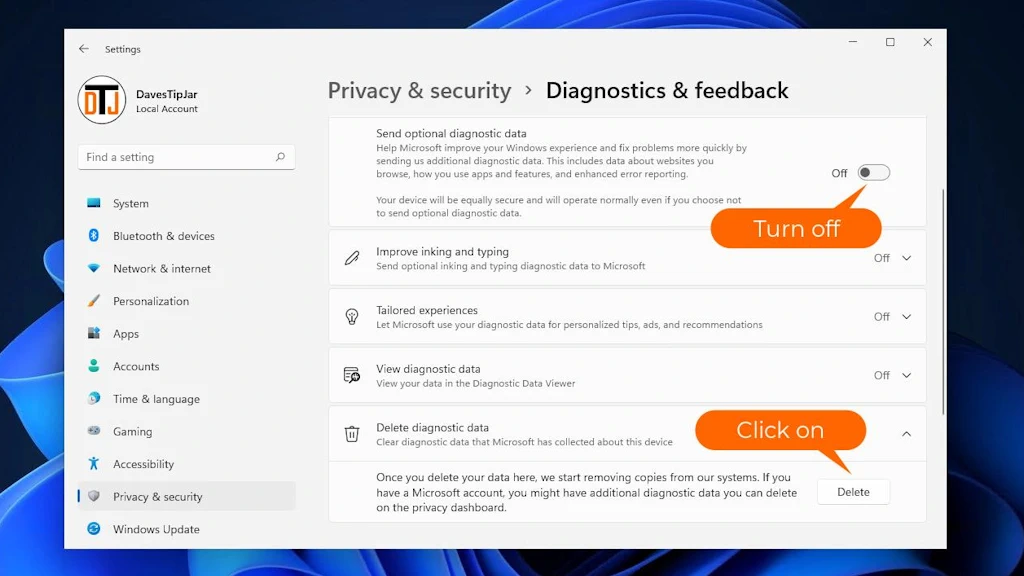 It’s just one more piece of data needed to build a digital profile about you.
However, you can limit this data collection by adjusting these privacy settings to make sure that Microsoft only receives the bare minimum required.
After you’ve disabled this, also delete any previously collected data.
Disable Windows Update Delivery Optimization
Did you know that Windows 11 and Windows 10 versions can use your computer and network bandwidth to help distribute Windows operating system updates to other Windows users?
If you don’t have unlimited internet bandwidth from your provider, you’re using your limited bandwidth to update Windows on other users’ PCs.
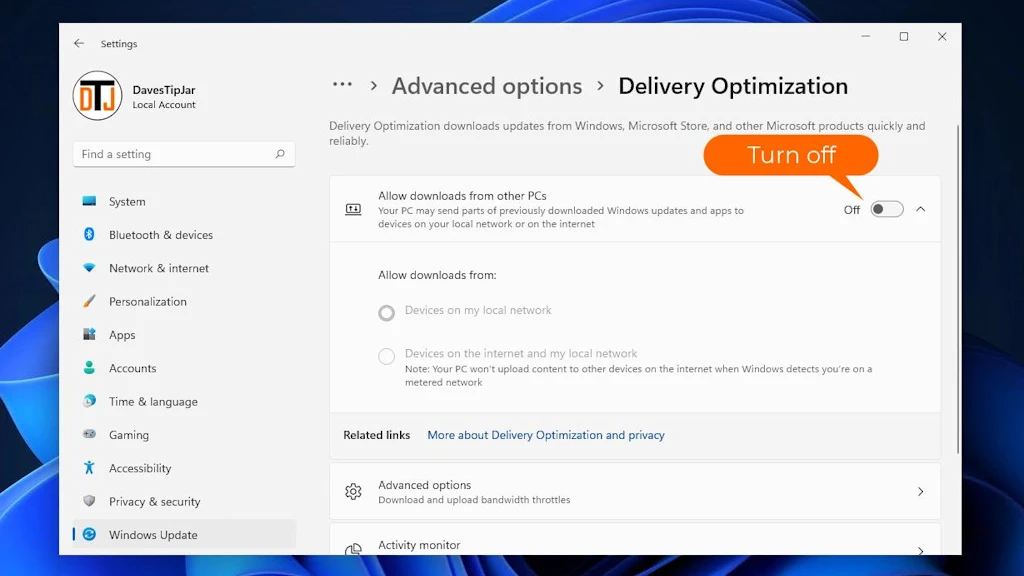 Even if you have unlimited internet use, consider turning this setting off to make sure your bandwidth is used only for your needs.
This setting is one of the many ways to improve Windows 11 privacy and is one of the privacy settings most don’t even know about.
Turn off Microsoft’s “Useful Tips” Notifications
These notifications might be helpful to some, and they’re well-intentioned, but they’re also intrusive.
I get enough of the “pop-ups’ when visiting sites online. I don’t need any of these showing up on my Windows Desktop.
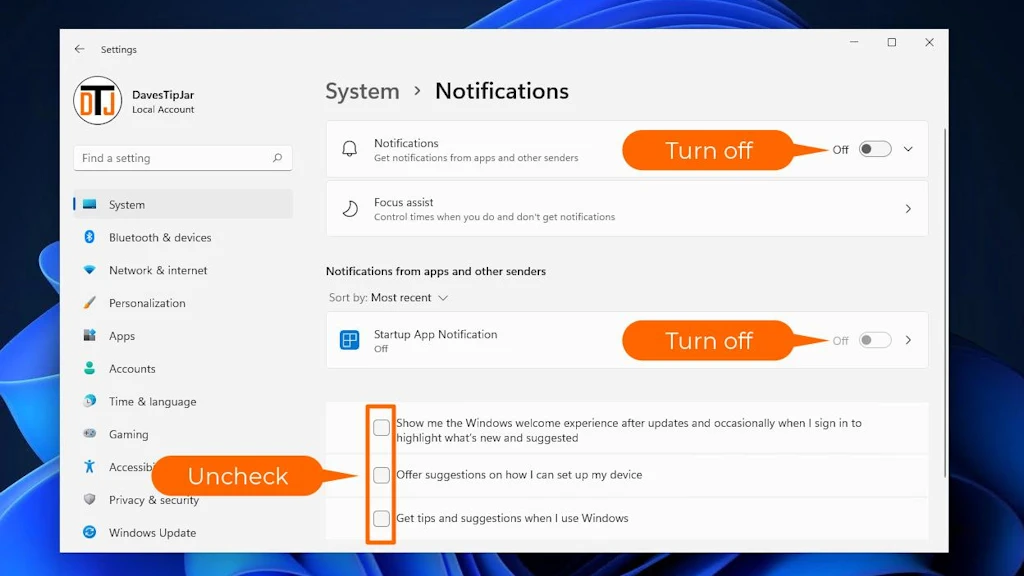 Turning these Microsoft notifications off will reduce pop-ups and distractions while you’re working or playing a game.
The last thing I want when I’m in the middle of racing in my simulator is for an ad to pop up telling me how to take advantage of a new Windows feature.
Stop Using Edge and Switch to Firefox
MS Edge is the default web browser in Windows 11 and Windows 10, and Microsoft would love for you to use it for your daily internet use.
When you use Edge, many people may leave Bing as the default search engine. This helps Microsoft directly compete with Google and to capture and analyze more search history data to improve its targeted advertising.
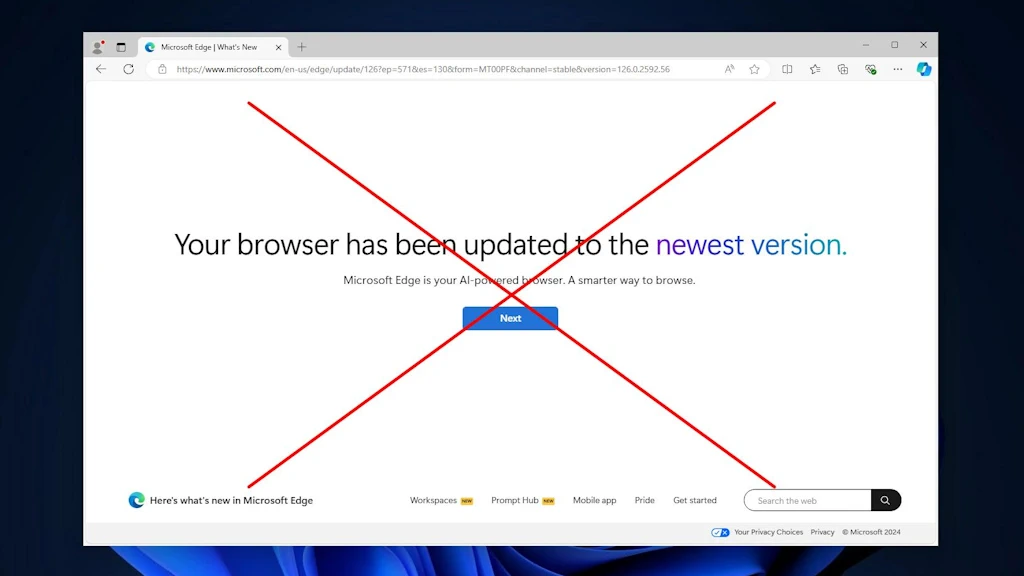 Also, Edge integrates seamlessly with other Microsoft services, like Microsoft 365 and OneDrive. Microsoft wants you to use its ecosystem.
Lastly, Edge users make it easier for Microsoft to collect usage data and feedback, which it uses to enhance the browser and other software and services it offers.
Like everyone else, it’s all about the data. However, if you’d like to minimize data collection about you, consider switching to an alternative browser such as Firefox.
Firefox is known for its privacy-focused features. Switching browsers can significantly enhance your online privacy. After all, browsing should be safe and private.
Also, if you’re looking for a search engine promoting online privacy, consider DuckDuckGo.
More Helpful Tips to Improve Your Online Privacy
Lastly, update your software, use strong passwords, and consider a trusted VPN for added security.
These tips go beyond using a Microsoft account with Windows 11 and help create a comprehensive approach to online privacy.
The only truly private way is not to use the internet. Although let’s be honest: that’s not going to happen!
It’s not just about reducing data collection; it’s about taking more control over your computer and how you use it.
By making these changes, you’re taking control to protect your private data.
Look for future articles where we dive deeper into these options and many more.
Final Thoughts
Are you old enough to remember the “before times”? You know, before social media, and when the internet was a curiosity rather than the necessity it is today. People would have to physically dig through trash to gather other people’s data.
I also understand some may feel that these suggestions are extreme. And, if you’re willing to trade some privacy for convenience, that’s your personal choice. Just know that the options are there, should you choose.
However, there are many new features in Windows 11 that require several of the settings we just covered to remain enabled. Again, it’s the old productivity-versus-privacy argument. If you wish to take full advantage of the productivity features in Windows 11, that’s the trade-off.
The bottom line is that if you do anything online with your computer, someone somewhere, at the very least, is collecting data. Data is collected on what you search for, the sites you visit, and the products and services you buy.
While you can’t completely stop the data gathering, you do have options to minimize it. It may be a battle we’ll never win, but it doesn’t mean we should all stop trying.


